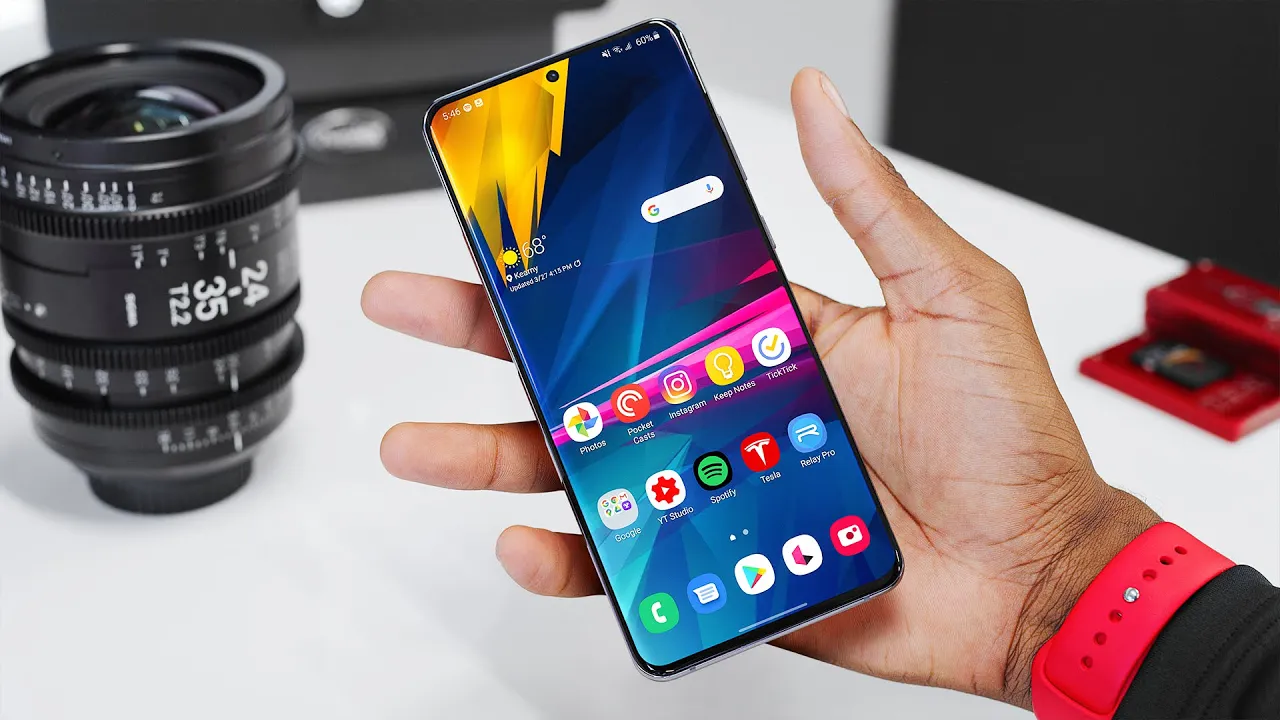
What's On My Phone: 2020!
0 up · 0 down · 0 ratings
Promos
What's on my Galaxy S20 Ultra - beyond the apps and settings Wallpaper: i.imgur.com AndroidPolice S20 tips and tricks: androidpolice.com MKBHD Merch: shop.mkbhd.com Video Gear I use: kit.co Tech I'm using right now: amazon.com Intro Track: Jordyn Edmonds smarturl.it Playlist of MKBHD Intro music: goo.gl ~ twitter.com @MKBHD @MKBHD
What’s On My Phone: 2020! is a comprehensive look at Marques Brownlee’s Galaxy S20 Ultra setup, with a twist: he shows how he tunes a phone to behave more like a stock Android experience rather than Samsung’s default skin. The video opens with a casual, quarantine-era intro and immediately sets expectations that the layout will be familiar to fans who’ve seen his previous “What’s on my phone” videos, but with important tweaks for better daily use on a large device. He explains that while the general two-page app layout remains, the daily driver is now the Galaxy S20 Ultra, and he uses it to demonstrate how to optimize for a more stock-like feel. The first portion is about display and navigation choices, including enabling 120 Hz, opting for gesture navigation, and emphasizing the usefulness of a searchable settings interface to quickly locate features without memorizing every category. He also notes that Samsung’s default launcher limits gesture support, so he sticks with Samsung’s launcher for now, but outlines how to personalize the home screen, notification access, and app drawer behavior to reduce clutter and improve accessibility on a big screen. As the video progresses, he dives into more concrete customization steps: changing the home screen grid to 5x5 for a cleaner layout, enabling swipe-down notifications, disabling Samsung’s left-side “Daily” panel, and standardizing default apps to non-Samsung alternatives like Google Chrome and Google Messages, with Gboard as the keyboard. He discusses practical tweaks such as pinning apps in RAM for faster access, cleaning up quick settings, and enabling features like media volume control, battery percentage in the status bar, and Google Photos’ battery optimization settings to keep cloud backups up-to-date in real time. Throughout, Marques emphasizes the value of searchable settings to quickly locate and apply these tweaks, and he invites viewers to share their own setup tips in the comment section. The video concludes with a reminder that there are countless ways to tailor a phone to individual workflows, and that viewers should experiment and share their best optimization tips, while acknowledging that different devices will require different levels of adjustment. Overall, the video serves as both a practical guide and a tour of how one of tech culture’s most trusted reviewers configures a flagship Android phone for his unique use case. In sum, the video blends a lightweight, entertaining vibe with a highly actionable walkthrough of system tweaks, launcher choices, default apps, and advanced settings. Viewers are encouraged to adopt the most impactful changes, such as enabling 120 Hz, adopting gesture navigation, and prioritizing Google services over Samsung defaults, to achieve a smoother, more stock-like experience on the Galaxy S20 Ultra. The takeaway is that even with a big, feature-rich device, thoughtful customization can make Android feel simpler and more efficient, and the door is open for viewers to push their own configurations further in the comments.
Topics · technology · mobile_devices · android · productivity · reviews · how_to_and_tips
Questions answered
- What is the main device Marques uses as his daily driver in this video?
- The Samsung Galaxy S20 Ultra is used as the daily driver in this video.
- Which settings does Marques highlight as most impactful for a stock-like Android feel?
- Key settings include enabling 120 Hz, switching to gesture navigation, using Google as the default browser and Messages app, and adjusting home screen and quick settings for easier access.