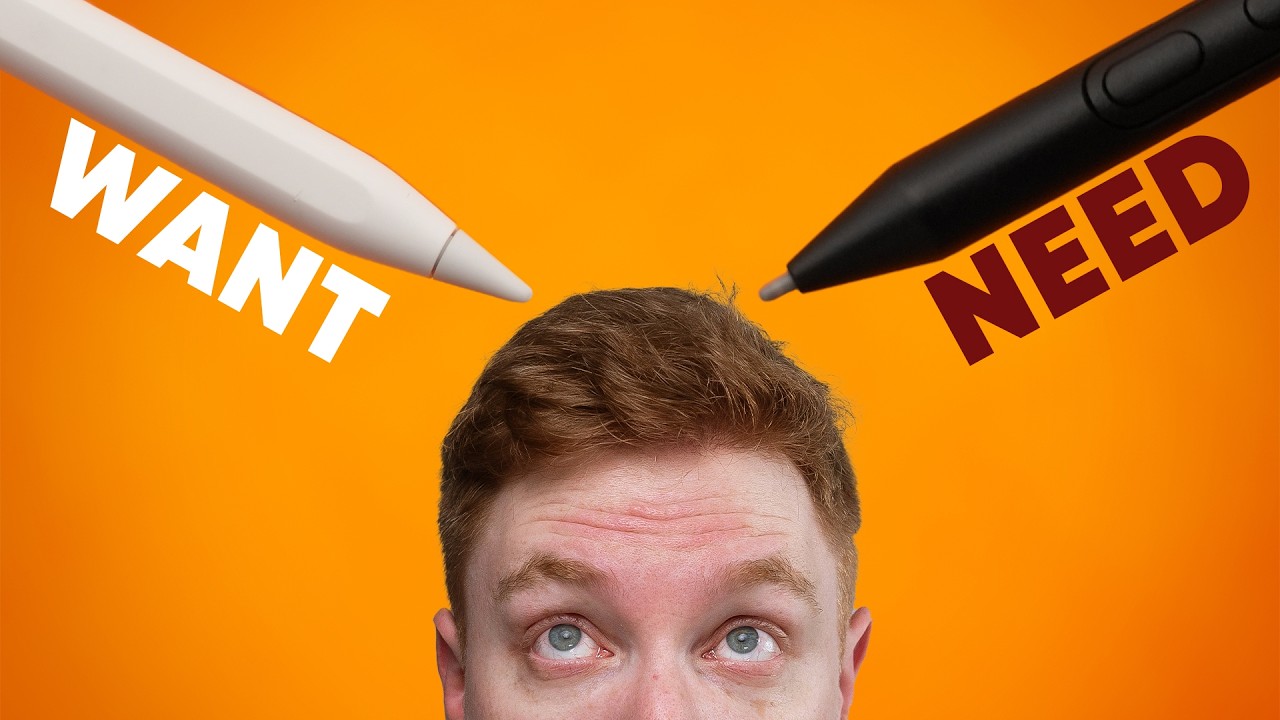
Is the Apple Pencil Pro good enough for professionals?
0 up · 0 down · 0 ratings
Promos
Check out Paperlike 2.1 at: paperlike.com The new Apple Pencil Pro has a lot of amazing new features that should be a big boon for artists. However we learned that, professionally, artists stick with their Wacom displays. Jonathan met with an artist to find out why, and see if the new Pencil Pro can win them over. Buy a Wacom Cinitiq Pro 27: geni.us Buy a Wacom Movink: geni.us Buy an Apple Pencil Pro: geni.us Buy an iPad Pro M4: geni.us Buy an iPad Air M2: geni.us Purchases made through some store links may provide some compensation to Linus Media Group. ► GET MERCH: lttstore.com ► GET EXCLUSIVE CONTENT ON FLOATPLANE: lmg.gg ► SPONSORS, AFFILIATES, AND PARTNERS: lmg.gg FOLLOW US ELSEWHERE --------------------------------------------------- Twitter: twitter.com Instagram: @macaddressyt Facebook: @MacAddressChannel CHAPTERS --------------------------------------------------- 0:00 Intro 0:44 Meet Elizabeth, the professional artist 1:48 Getting started on the iPad 2:29 The best of what artists use... The Cintiq Pro 3:09 All the customizability 3:41 What Elizabeth is drawing 5:05 The Cintiq Pro's quality 5:46 What Elizabeth thinks of the Cintiq 6:42 Thanks PaperLike! 7:09 Getting into the new Apple Pencil Pro 8:38 Squeeze and Barrel Roll 10:14 There is Photoshop on iPad... 11:26 Sidecar is an option 12:23 The Wacom Movink is a portable iPad alternative 13:31 The Movink's quality 13:45 Elizabeth's thoughts
Is the Apple Pencil Pro good enough for professionals? walks through the capabilities of the Apple Pencil Pro and compares it to established professional drawing setups, focusing on whether the iPad ecosystem can displace traditional Wacom hardware for creative professionals. The host introduces Elizabeth, a working background artist, who shares her experience with a Wacom Cintiq Pro 27 and later tests the new Pencil Pro on an iPad Pro. Early segments cover the Pencil Pro’s basic features like pressure sensitivity, tilt, barrel roll, and squeeze, highlighting how these tools can translate into real-world workflows in Photoshop and Procreate. A significant portion of the video is dedicated to Elizabeth evaluating the Cintiq Pro’s quality and the iPad’s sidecar functionality, plus the option of a portable Movink alternative for artists on the go. The discussion then shifts to hands-on testing of the Pencil Pro on the iPad, including the feel of drawing on glass, the Paperlike screen protector’s impact on haptic feedback, and how quickly professionals might adapt to the new controls. Finally, the video weighs the trade-offs between the Wacom setup, the large Cintiq, and the iPad Pro with Procreate, concluding with Elizabeth’s nuanced stance: she admires the iPad for its portability and brush workflow but still sees the Cintiq as preferable for certain professional tasks, and she hints at potentially adopting the iPad Pro in the future while retaining her current Wacom setup for now.
Topics · technology · digital_art · professional_tools · hardware_review · tablets_and_displays · creative_software · industry_analysis
Questions answered
- What are the main reasons Elizabeth prefers Wacom over the iPad Pro for professional work?
- Elizabeth cites the robustness of the Cintiq Pro, precise tilt behavior without manual brush customization, larger and more accurate displays, and the deeper integration of professional workflows as reasons she leans toward Wacom for professional work.
- Can the Apple Pencil Pro and iPad Pro fully replace a desktop Wacom setup for professionals?
- The video suggests that while the Pencil Pro and iPad Pro offer compelling portability and strong Procreate performance, they currently do not fully replace a desktop Wacom setup for every professional task, especially where software on macOS and precise brush controls are concerned.
- What features of the Pencil Pro are highlighted as most useful for professionals?
- The most useful features noted are pressure sensitivity, tilt, barrel roll, squeeze, customizable controls on the pen and display, and the potential benefits of Sidecar and Procreate on iPad for certain workflows.
- Is the PaperLike screen protector necessary for professional use on the iPad Pro?
- According to Elizabeth, adding PaperLike improves tactile feedback and reduces resistance, making the iPad drawing experience feel more like drawing on paper, which many professionals find advantageous.