Youtube Mega-Widescreen Camtasia Studio 6 Settings
0 up · 0 down · 0 ratings
Channels and socials
***WATCH IN HD*** New Youtube Mega-Wide HD Player Resolution: 1920x960 In this tutorial, I go over all of my Camtasia Studio 6 HD Settings that I use when uploading a video tutorial to YouTube. There have been tons of requests for this video to be done, so I had to do it! If anything doesn't work for you, just subscribe and drop me a message and I'll try my best to get back to it as soon as I can. Apple Quicktime Download: apple.com Youtube Icon Tutorial: (For your watermark) youtube.com Original HD Uploading Tutorial: youtube.com If this all doesn't work, post a video response to this video: I'll respond with a video response to YOUR video! I hope I can solve all problems from here on out. Enjoy - SUBSCRIBE
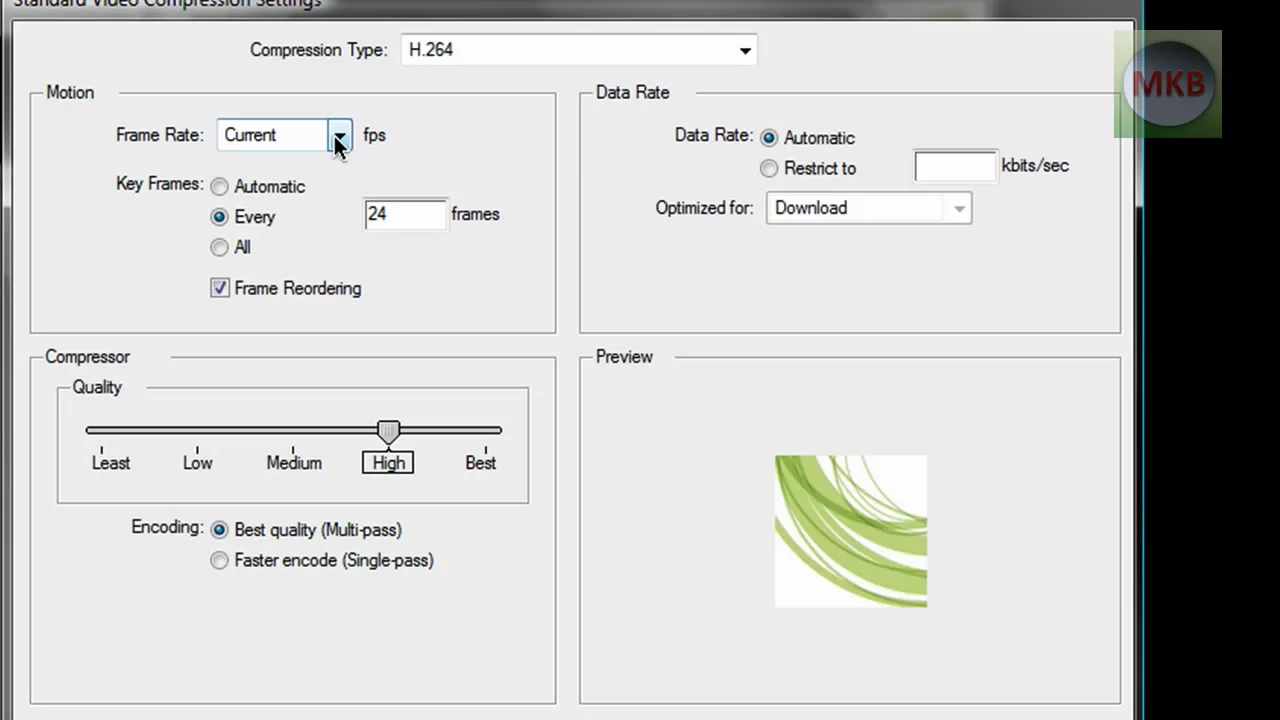
The video provides a detailed, step-by-step workflow for maximizing the quality of Camtasia Studio 6 recordings destined for YouTube, with a strong emphasis on creating a repeatable 720p production preset. The presenter starts by explaining the motivation behind the tutorial, noting the high demand for guidance on achieving optimal HD output from Camtasia Studio 6 and promising a practical method that can be copied for every future project. He demonstrates the initial setup by importing a clip, accessing the Produce tab, and using Batch Production to set up a reusable 720p preset. The core of the tutorial focuses on configuring the QuickTime export options, where he selects the H.264 video codec, sets the frame rate to 30fps, enables best-quality multi-pass encoding, and ensures the audio is 4800 kHz, 16-bit stereo. He then covers the final export parameters, stressing that the frame size should be 1280 by 720 for YouTube, and he discusses how background color and aspect considerations affect non-native resolutions. Finally, the video shows how to apply a watermark and how to re-use the created preset for subsequent uploads, reinforcing the idea of a streamlined workflow for HD YouTube videos and inviting viewer feedback for future tutorials.
Topics · video-editing · how-to · technology · tutorials · screen-recording · hd-video
Questions answered
- What is the recommended export format for Camtasia Studio 6 to achieve YouTube 720p quality?
- Export as a dot mov file using QuickTime, with video codec H.264, 30 frames per second, best quality multi-pass encoding, and audio at 4800 kHz in stereo.
- What resolution should you target when uploading to YouTube to ensure 720p playback?
- Set the video frame size to 1280 by 720 in the export settings.