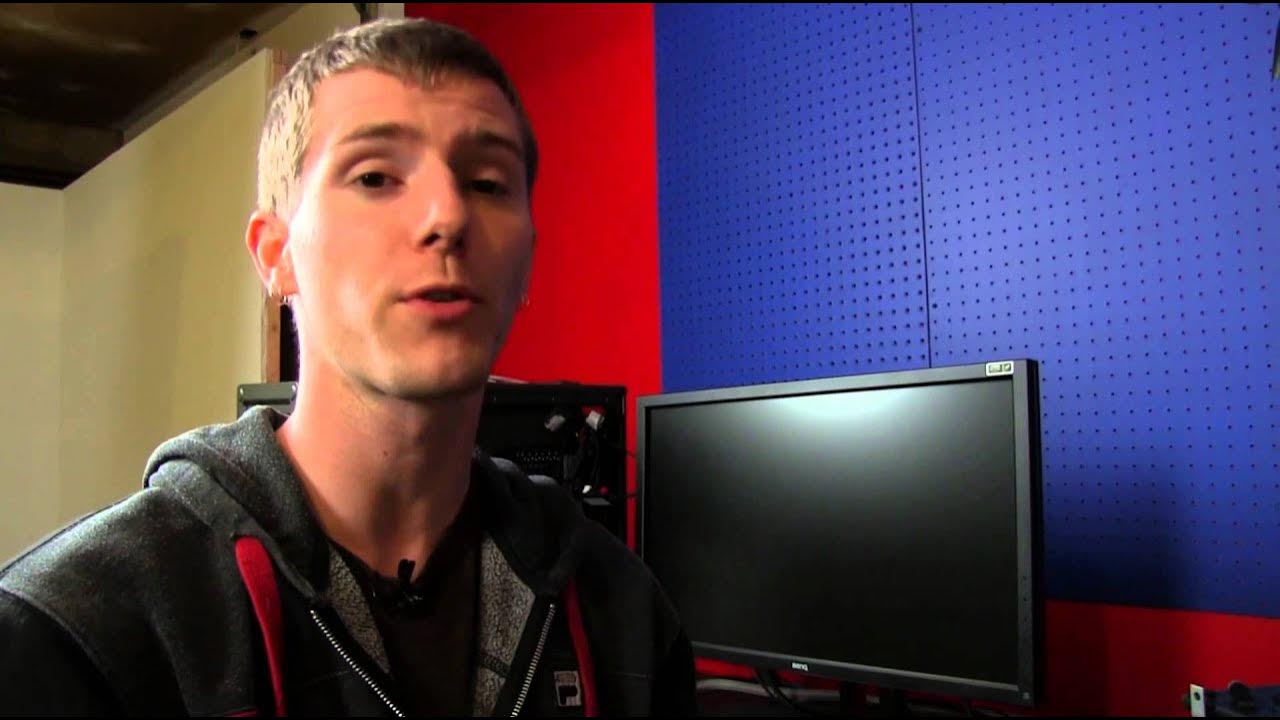
GTX Titan LCD Monitor Overclocking Guide Linus Tech Tips
0 up · 0 down · 0 ratings
Description
Want to overclock the refresh rate of your monitor? Got a Titan? This is how you do it! Read more & join our community forum: linustechtips.com Buy it now at NCIX: ncix.com
This Linus Tech Tips guide demonstrates how to overclock a GTX Titan driven 30-inch, 2560x? monitor beyond the typical 60 Hz limit using Nvidia driver features. The video explains that many high resolution LCD panels are hard capped at 60 Hz due to panel design and DVI dual-link limitations, but Nvidia’s control panel allows creating custom resolutions and refresh rates like 70 Hz or 80 Hz. Linus walks through enabling advanced display settings, opening the Nvidia control panel, and crafting a custom resolution with a higher refresh rate, noting that results vary by monitor and that pushing beyond rated specs can affect reliability and warranty. He emphasizes that the perceived benefit is smoother motion and higher effective frames per second, not more actual frames per second from the GPU, and that you should test gradually while understanding potential instability. The tutorial also compares panel types such as VA, IPS, and TN, acknowledging that overclocking can degrade color accuracy or viewing angles on some panels, but may preserve image quality on others while delivering more fluid motion. In closing, Linus thanks viewers and invites them to subscribe for more hardware guides, reiterating that monitor overclocking is possible but not guaranteed, and depends on both the GPU driver support and the specific monitor's tolerance.
Topics · hardware overclocking · display technology · tutorial · graphics cards
Questions answered
- What is the purpose of creating a custom resolution in Nvidia Control Panel when overclocking a monitor?
- Creating a custom resolution allows the user to specify a higher refresh rate than the monitor's factory rating, enabling the monitor to display more frames per second if the panel and connection support it.
- What are the potential risks of overclocking a monitor as described in the guide?
- Risks include reduced reliability, potential color or image issues, possible warranty voiding, and the chance that the monitor may fail to display correctly if the overclock is unstable.