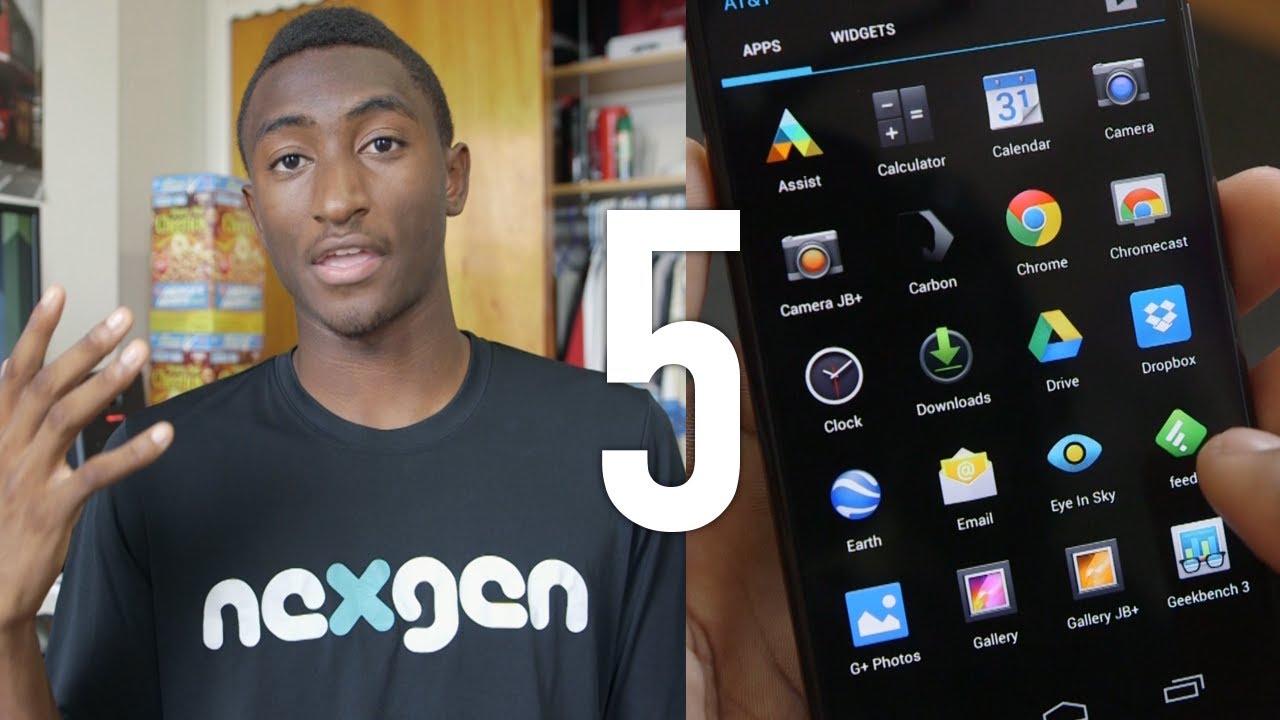
5 Moto X Tips & Tricks!
0 up · 0 down · 0 ratings
Channels and socials
Moto X is my daily driver. Here are some tips from experience! Customization: motomaker.com Moto X Review: youtu.be Moto X Features: Explained! youtu.be 1. Customization (0:31) 2. Performance, Apps (2:11) 3. Touchless Control (3:06) 4. Battery life (3:54) 5. Camera (4:38) Eye in the Sky Weather: goo.gl Feedly: goo.gl Google Play Games:goo.gl Carbon for Twitter: goo.gl Camera JB+: goo.gl Video Gear I use: amzn.com Intro Track: ASDF Movie Song Outro Track: "Channel 41" by Deadmau5 ~ twitter.com google.com @MarquesBrownlee @MKBHD @MKBHD
The video opens by positioning the Moto X as a highly customizable Android device, emphasizing the ability to choose among hundreds of color combinations for the back, front, and trim via Moto Maker. The host explains that at launch the customization is AT&T exclusive with later international availability, and describes the process of purchasing a Moto X with a redemption card and configuring colors online to be shipped in four days or less. He shares his own color deliberations, considering red, black, and an orange-like trim, and invites viewers to design their own Moto X and share screenshots on social media for potential re shares. The second major segment covers a practical setup routine after unboxing, including enabling developer options to speed up animations, installing favored apps such as Eye in the Sky for weather, Feedly for news, and Google Play Games for social play, and pointing to a linked video detailing his overall Android setup. He also mentions how this device serves as a good entry point for first-time Android users, highlighting features like edge gestures and the on-device customization experience, and hints at future tips and reviews. The video then moves into a discussion of Touchless Control, explaining its usefulness when hands are occupied, and notes that updates to this feature are now delivered through the Google Play Store, avoiding full OS updates. He emphasizes battery life as already solid out of the box but shares concrete strategies to eke out more life, such as using black-themed apps and wallpapers to leverage OLED/economical black pixels, and manually managing brightness instead of relying on auto brightness. Finally, the camera is acknowledged as a weaker area with tips to improve shots, including manual HDR control, avoiding HDR for moving subjects, and trying a third-party camera app (Camera JB+) to regain quick focus and better composition. The host closes by inviting further color and design suggestions, praising the Moto X as a strong mobile experience and a solid choice for Android newcomers, and directs viewers to the description for more resources and related videos.
Topics · technology · mobile-devices · android · hardware-reviews
Questions answered
- What is the first step to customize the Moto X color options?
- Go to Moto Maker to customize the back, front, and trim colors and then use the redemption card in-store to order the configured device.
- What feature helps when you need hands-free input, and how is it updated?
- Touchless Control. It is updated through the Google Play Store rather than requiring a full OS update.