Common BIOS Settings Explained
0 up · 0 down · 0 ratings
Promos
What are some of the more common BIOS settings you might want to tweak to get your computer running as well as it can? Share your mouse and keyboard between multiple computers with Synergy! Save 25% here: symless.com Techquickie Merch Store: designbyhumans.com Techquickie Movie Poster: shop.crowdmade.com Leave a comment with your requests for future episodes, or tweet them here: twitter.com Follow: twitter.com Join the community: linustechtips.com
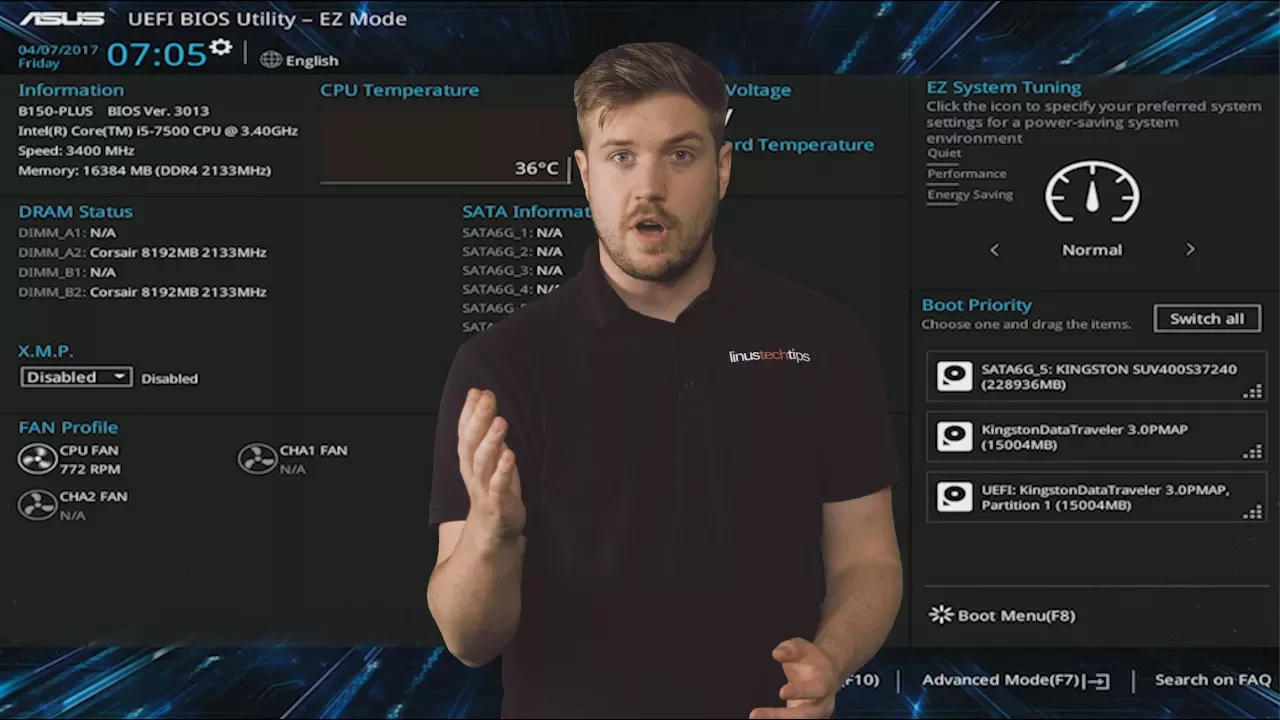
The video Common BIOS Settings Explained introduces the BIOS as the firmware that governs the most basic, low-level functions of a PC, and then walks through several common settings that both newcomers and experienced builders should monitor to keep systems running smoothly. It starts with boot order, explaining how the BIOS searches for a bootable device and how changing the priority lets you boot from USB drives or optical discs for system repairs or special tools. The host also covers security and speed related options, such as secure boot, which helps protect against rootkits by ensuring only genuine software loads during boot, and fast boot that reduces startup time though it may conceal boot problems. The discussion then moves into hardware enablement and performance tuning, noting that individual components like SATA devices, onboard audio, network ports, PCIe slots, or RGB features can be toggled on or off to reduce clutter or resolve conflicts with other peripherals. For performance enthusiasts, the video highlights features like RAID configuration for multi-drive setups, XMP profiles to run RAM at rated speeds, and CPU-level controls such as EIST, speedstep, and C-states, with cautions about heat and power when throttling is disabled. Finally, the presenter touches on security at the BIOS level with an optional password and explains its limitations, emphasizing that BIOS passwords are not a foolproof anti-theft measure. The overall takeaway is that adjusting these settings can optimize boot reliability, performance, and security, but changes should be made thoughtfully to avoid instability. The closing segments invite viewers to share additional BIOS topics they want covered and encourage experimentation with caution, reinforcing that tweaking settings is a balance between performance gains and system stability. The video then segues into a plug for a software tool that helps manage multiple computers, underscoring practical multitasking workflows alongside BIOS basics.
Topics · technology · computer-hardware · tutorial
Questions answered
- What is BIOS and why is it important for my computer startup?
- BIOS is firmware that initializes hardware and loads the bootloader, which then starts the operating system. It controls basic functions like boot order, security checks, and hardware enablement, making it essential for reliable startup and early system configuration.
- Can I safely enable all hardware features in the BIOS?
- Not always. Some features can be left enabled for best compatibility, but disabling unused devices like onboard audio or network adapters can reduce boot time and resource usage. When enabling performance features like XMP, be mindful of stability and cooling, as higher speeds can increase heat and power draw.