Windows 8 Tip - Adding a Secondary Touch Screen Monitor Linus Tech Tips
0 up · 0 down · 0 ratings
Description
Want to add a touch screen display to your Windows 8 PC? You might run into some PRETTY weird issues. This quick fix will get you up and running in a hurry :) CA: ncix.com US: us.ncix.com
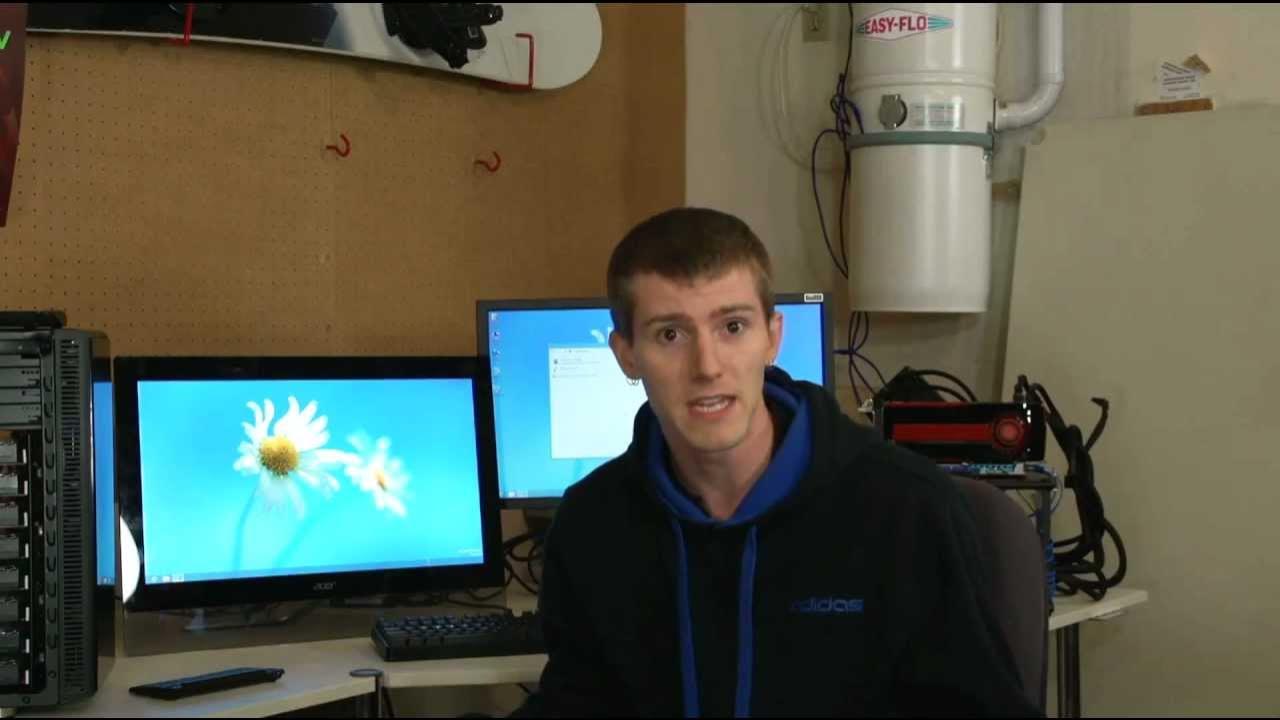
This Linus Tech Tips walkthrough explains how to use a secondary touchscreen monitor with a Windows 8 PC when one display is touch enabled and the other is not. The host starts with a common scenario: a touchscreen monitor paired with a non-touchscreen display, and a full-screen application running on the non-touch screen while navigation happens on the touchscreen. He demonstrates an early issue where touch input initially registers on the wrong monitor and describes the quick field fix he used on his setup. By navigating to display settings, he assigns the Acer as the main display to restore correct touch mapping, then tests responsiveness by opening Internet Explorer and verifying touch input on the intended screen. The core solution centers on adjusting the Tablet PC Settings in the Control Panel, selecting the right monitor, and allowing touch calibration to identify the screen correctly. He emphasizes this as a permanent fix and highlights its practicality for notebook users or desktop setups with a preferred primary display. Overall, the video provides a practical, low-friction approach to enabling reliable touch input across multi-monitor configurations in Windows 8, including a brief diagnostic path for when touch does not behave as expected, and concludes with encouragement to try the steps and share results. The key takeaway is that Tablet PC Settings offer a robust, repeatable way to map touch input to the intended display for smoother, more intuitive multi-monitor use.
Topics · technology · how_to · operating_systems · computer_peripherals
Questions answered
- What is the quick fix to map touch input to the correct monitor when using a secondary touchscreen with Windows 8?
- Open the Control Panel, go to Tablet PC Settings, and set the correct monitor as the main display, then calibrate if needed.