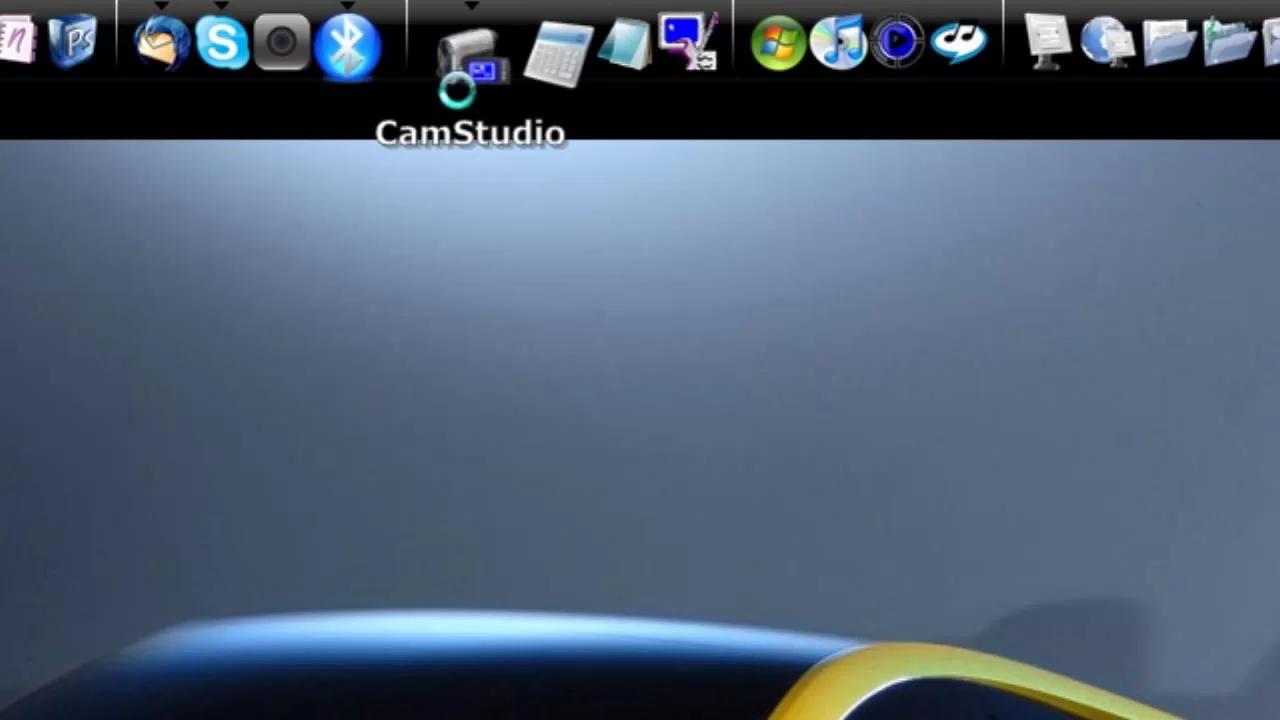
HD Tutorial: Change Rocket Dock Icons
0 up · 0 down · 0 ratings
Description
***WATCH IN HD*** This tutorial will quickly show you how to change and rename the icons in your Rocketdock Icons.
This HD tutorial walks you through changing and renaming icons in RocketDock. The presenter demonstrates picking new icons from the RocketDock website, downloading an icon pack, and extracting the files to a memorable location on the computer. The step by step process includes selecting the target icon, opening the icon settings, and using the plus button to add a new icon from the extracted files. The video emphasizes replacing the existing icons with the newly downloaded ones while keeping the original icon names for clarity. It also covers renaming the icons directly within RocketDock to ensure the labels match the new visuals. Throughout, the creator shows practical checks like verifying virus scans and confirming that the new icons appear in the launcher. The tutorial concludes with a quick recap of the changes and an invitation for viewers to suggest future topics, reinforcing a hands-on approach to desktop customization.
Topics · technology · software customization · how-to · desktop customization
Questions answered
- How can I download RocketDock icons from the official site and start the replacement process?
- Go to rocketdock.com, click Get add-ons, open the Icons section, choose an icon pack or single icon, download the file, and extract it to a known folder on your computer.
- How do I replace an existing RocketDock icon and rename it?
- Right click the launcher icon, select Icon settings, click the plus to add a new icon from your extracted folder, choose the new image, replace the old image, and optionally rename the launcher to match the new icon.