Micro SATA Adapter for 1.8 Inch Drives Linus Tech Tips
0 up · 0 down · 0 ratings
Description
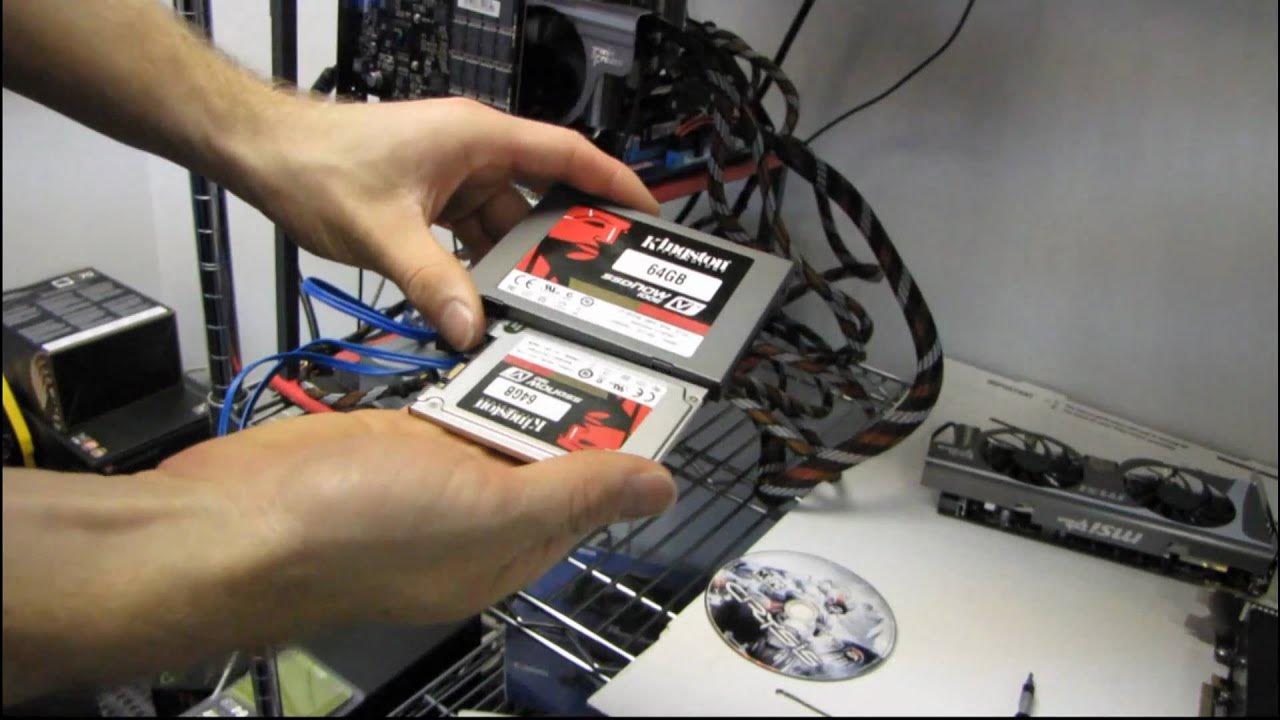
I had a 1.8" drive that I needed to find a way to hook up to a desktop PC. This video shows the adapter needed and the procedure for hooking it up.
This Linus Tech Tips video demonstrates how to hook up a 1.8 inch micro SATA drive to a desktop PC using a dedicated micro SATA adapter that carries both power and data signals. Linus first introduces the tiny Kingston SSD, highlighting its compact form factor compared to a standard 2.5 inch SSD and noting its use of a micro SATA interface. He then physically connects the micro SATA end to the drive, attaches a regular SATA power connector from the power supply, and finally plugs the drive into the motherboard’s SATA port. After the hardware hookup, he proceeds to initialize the drive in Windows Disk Management, creates a new simple volume, assigns it a drive letter, and confirms that the drive is ready for use. The video closes with a quick recap of the steps and a prompt to subscribe for more tech tips from Linus Tech Tips. Overall, it serves as a compact, practical guide for retrieving data from or testing a 1.8 inch SATA SSD using off-the-shelf desktop components.
Topics · technology · hardware · consumer_tech
Questions answered
- What is the micro SATA adapter used for in this setup?
- The micro SATA adapter provides both power and data connections to a 1.8 inch SATA drive so it can be connected to a standard desktop PC via regular SATA power and data interfaces.
- What are the basic steps to access and use the 1.8 inch drive on a desktop?
- Connect the micro SATA end to the drive, attach a SATA power connector from the power supply, connect the data SATA cable to the motherboard, initialize the disk in Disk Management, create a new simple volume, and assign a drive letter.