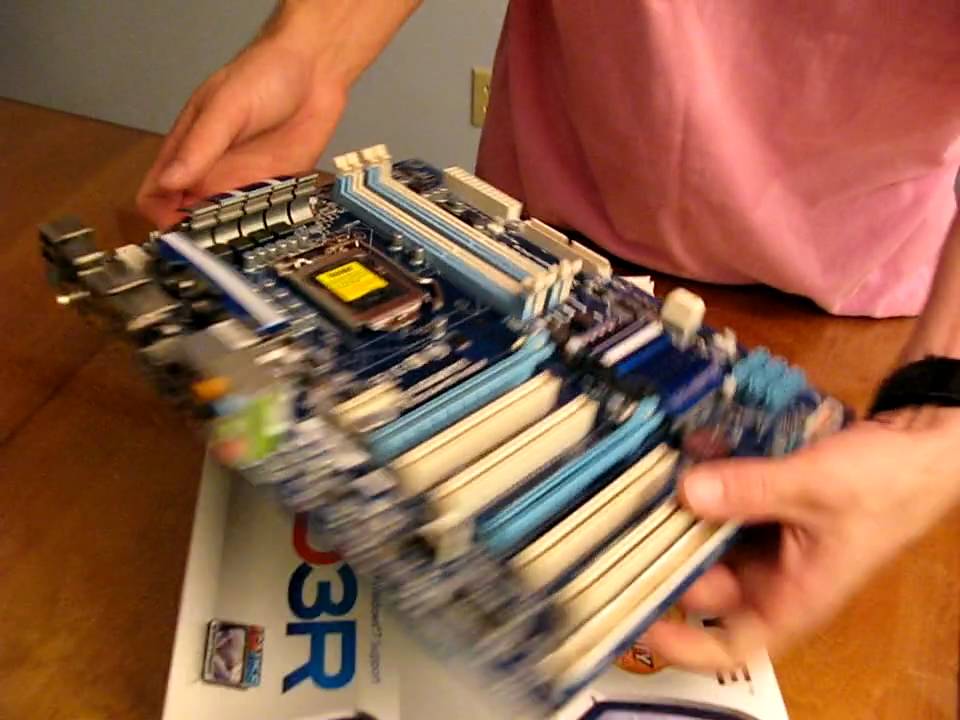
Gigabyte P55-UD3R P55 LGA1156 Core i5 Motherboard Unboxing Linus Tech Tips
0 up · 0 down · 0 ratings
Description
I thought I was done unboxing the Gigabyte boards, but it looks like I'm not :( I totally forgot about this board, which is a big problem because it's one of the best values in their P55 lineup!
Linus Tech Tips presents an unboxing and quick overview of the Gigabyte P55-UD3R, a midrange LGA1156 motherboard aimed at value-focused builders. The video opens with the packaged accessories, including a user manual, DVD with drivers, an IO shield, a Gigabyte sticker, the Smart 6 manual, SATA cables, and an IDE cable, establishing a fairly standard accessory bundle for the era. Linus then pulls the board out for inspection, noting its relatively sturdy VRM setup for a lower-end board and the eight phase power design, which hints at decent overclocking potential for the i5 lineup of that generation. He highlights key layout choices, such as the eight pin and 24 pin power connectors positions, and the IO panel with ten USB ports and a PS2 combo port, which give a sense of feature completeness despite the board missing some high-end touches. One important caveat is pointed out early: this model does not support Crossfire or SLI despite having two x16 slots, which limits multi-GPU configurations. Linus also comments on the older SATA port angles and other retracted features common to earlier P55 boards, contrasting it with higher-end boards in Gigabyte's lineup. In closing, he emphasizes that the P55-UD3R remains a capable platform for mid to high-end single GPU builds, particularly suitable for users who want strong value and adequate I/O without the premium features of more expensive boards.
Topics · technology · hardware · computing · hardware-unboxing
Questions answered
- Can the Gigabyte P55-UD3R enable dual channel memory with modern kits, and how should memory be installed for best performance?
- Yes, dual channel memory operation is supported on this board when two matching memory modules are installed in the appropriate paired slots as outlined in the motherboard manual. For best results, use identical sticks in the recommended slots and ensure they are properly seated. If issues arise with detection, reseat modules and check BIOS memory settings.