HD Tutorial: Firefox Addons
0 up · 0 down · 0 ratings
Description
A brief tutorial on how to download and install addons for the Mozilla Firefox internet browser - in this tutorial, I download, install, and uninstall a theme completely - Hope this helps! SUBSCRIBE
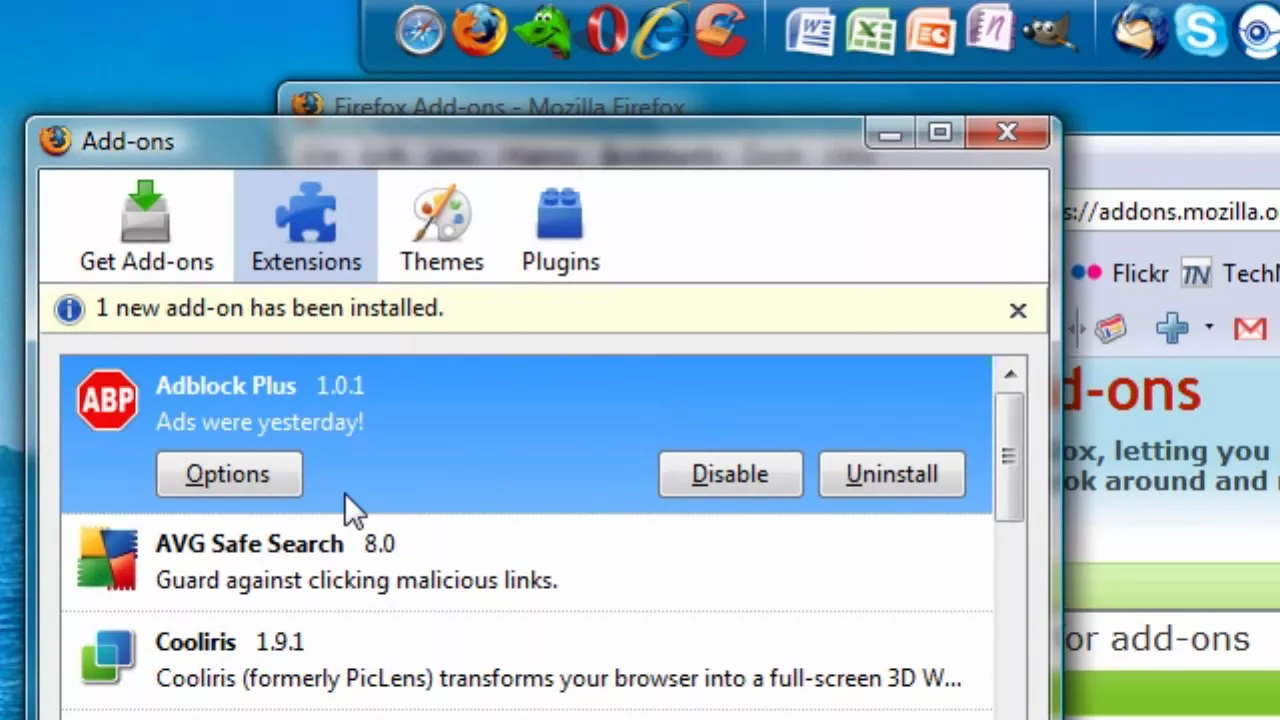
This HD Tutorial explains how to find, install, and manage Firefox add-ons using the official addons site. The presenter begins by navigating to addons.mozilla.org and demonstrates the process for selecting an add-on, checking compatibility, and clicking the Add to Firefox button. A confirmation dialog appears, and after confirming, Firefox downloads and requires a restart to complete the installation. The video then shows how to verify the newly installed add-on and how to uninstall an add-on if it is no longer desired, including a restart to finalize removal. The tutorial also notes how to check for updates to installed add-ons and mentions that there are many add-ons available, including themes and utilities like download managers. The overall takeaway is that adding, updating, and removing Firefox add-ons is a straightforward, user-friendly process that can enhance browser functionality with minimal effort. Viewers are invited to suggest future tutorials or requests for other Firefox customization topics.
Topics · technology · software · tuts and guides · internet browsers
Questions answered
- How do you install a Firefox add-on from addons.mozilla.org?
- Navigate to addons.mozilla.org, select a compatible add-on, click the Add to Firefox button, confirm the installation in the dialog, restart Firefox when prompted, and the add-on will be installed.
- How can you uninstall a Firefox add-on if you don’t want it anymore?
- Open Firefox, go to Tools, select Add-ons, click on the add-on you want to remove, choose Uninstall, and restart Firefox to complete the removal.