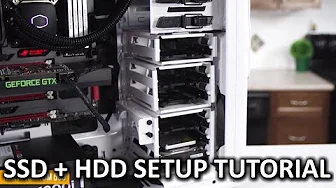
How To: Optimize your SSD+HDD setup
0 up · 0 down · 0 ratings
Channels and socials
If you're looking for the basics on how to optimize an SSD + HDD storage setup, then look no further! Tesoro GRAM link: bit.ly Tesoro Giveaway link: linustechtips.com Cooler Master Store link: bit.ly Pricing & discussion: linustechtips.com Support us: linustechtips.com Join our community forum: bit.ly twitter.com @LinusTech Intro Screen Music Credit: Title: Laszlo - Supernova Video Link: youtube.com iTunes Download Link: itunes.apple.com Artist Link: soundcloud.com Outro Screen Music Credit: Approaching Nirvana - Sugar High youtube.com Sound effects provided by freesfx.co.uk
This video provides a practical guide to configuring a storage setup that uses both an SSD for the operating system and frequently used programs and an HDD for bulk data. It begins with the rationale for separating OS and data to protect the system and manage costs, then walks through initial Windows installation steps when using both drives. The presenter explains how to identify drives during setup, create distinct volumes via Disk Management if a new drive is added, and assign drive letters. A core part of the guidance covers redirecting default save locations to the HDD, including setting up data folders for documents, downloads, music, pictures, and videos, and adjusting Steam library locations so future games install to the preferred drive. The video also covers maintaining performance by keeping the SSD free of large data writes and organizing game saves, and it ends with recommendations on optional game-by-game installation locations for faster loads on the SSD, while also touching on a practical note about giveaways and community engagement. Throughout, the host emphasizes a robust, bidirectional data management strategy that leverages the strengths of both drives to balance performance and storage capacity. The overall takeaway is a repeatable workflow for Windows users to maximize speed via SSD caching for apps and OS, while using HDD storage for large files and game libraries, with explicit steps to set defaults and maintain clean, organized directories. This approach can improve boot times, load times for frequently used programs, and ease of data management across a dual-drive setup.
Topics · storage optimization · pc hardware · operating system setup · gaming pc
Questions answered
- What is the recommended process for selecting the SSD during a fresh Windows installation on a dual-drive PC?
- During Windows setup, ensure both drives appear as separate entries, then select the SSD as the installation target by highlighting it and clicking Next. If a drive is not visible, open Disk Management from the Start menu to initialize and format it as a new simple volume, assign a drive letter, and label it for easy identification.
- How can I ensure that new data files are saved to the HDD instead of the SSD?
- Create new folders on the HDD for documents, downloads, music, pictures, and videos, then right-click the corresponding shortcuts or folders in File Explorer and set the target location to the new folders on the HDD. For programs like Steam, add a Steam Library folder on the HDD and install future games there to keep the SSD free for OS and key applications.
- Should I install games directly to the SSD or HDD, and how can I manage this in Steam?
- Install the OS and frequently used programs on the SSD for fast load times, and install games to the HDD by creating a Steam Library folder on the HDD. When installing a game, you can choose which Steam Library folder to use; you can also selectively install specific games to the SSD if you want the fastest load times for certain titles.