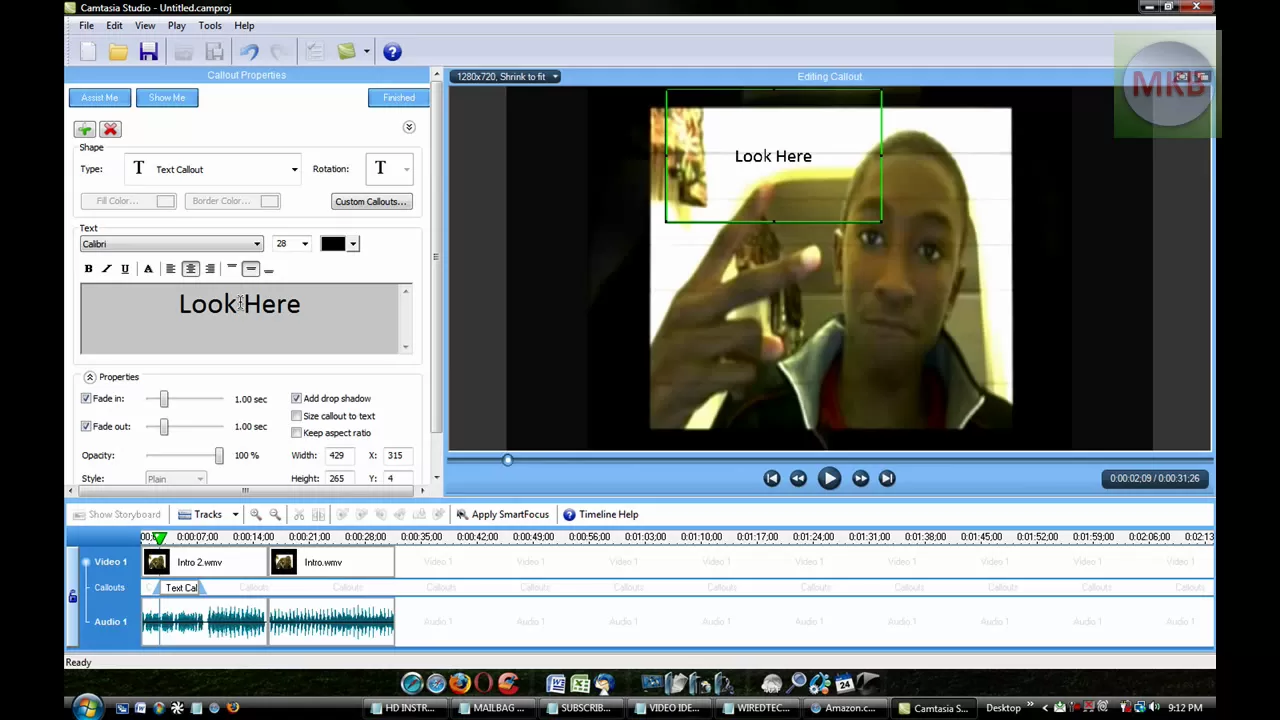
HD Tutorial: Callouts in Camtasia Studio 6
0 up · 0 down · 0 ratings
Description
***WATCH IN HD*** In this tutorial, I go over the usage of Callouts in Camtasia Studio 6, a feature that can make your videos look very professional, and very good in tutorials, if you use them correctly. If you want Camtasia Studio 6 keys, any subscribe can jsut ask! If you're subscribed, and you message me with a subject and message "Camtasia Studio (5 or 6)" I will get you your keys within the week! Enjoy - SUBSCRIBE
HD Tutorial: Callouts in Camtasia Studio 6 walks viewers through the process of adding and customizing callouts in Camtasia Studio 6. The presenter begins by loading media into the timeline, selecting an HD preset, and then opening the callouts panel to explore the various annotation options. The video demonstrates multiple callout types, including arrows, highlighters, blur callouts, notepads, bubbles, rectangles, speech bubbles, and text callouts. Throughout, the host emphasizes how each callout can be customized in size, color, and position, and he shows live previews in the on-screen window to help viewers visualize edits as they type or adjust attributes. The tutorial also covers practical tips like using the spotlight effect to isolate a region of the frame and how to time the callout duration to match on-screen emphasis, ensuring the final video remains clear and professional. In a detailed segment on custom callouts, the presenter demonstrates adding a bespoke image as a callout by using the Windows Snipping Tool to capture a screen region, saving it as a file, and importing it into Camtasia as a new custom callout. The walkthrough includes aligning the custom callout with the video content, resizing for readability, and pairing it with a zoom and pan action to create dynamic movement. The video concludes with a recap of the most useful callout types for tutorials and a note about future Camtasia Studio 6 tutorials, inviting viewers to request additional topics. Viewers are encouraged to experiment with different callout styles to enhance instructional clarity, and the presenter offers to respond to requests for more tutorials and featured topics in future videos.
Topics · video_editing · software_tutorials · technology · education
Questions answered
- What types of callouts can you add in Camtasia Studio 6, and how do you customize their appearance?
- You can add various callouts such as arrows, highlighters, blur callouts, notepads, bubbles, rectangles, speech bubbles, and text callouts. Each callout can be resized, positioned, and colored, with live preview shown in the on-screen window as you edit.
- How can I use a custom image as a callout, and what steps are involved?
- Create or capture the image you want to use with a tool like the Snipping Tool, save it as a file, then in Camtasia choose Add or Edit Custom Callout, select New Custom Callout, and import the image. Adjust size and position, then integrate with zoom and pan if desired.