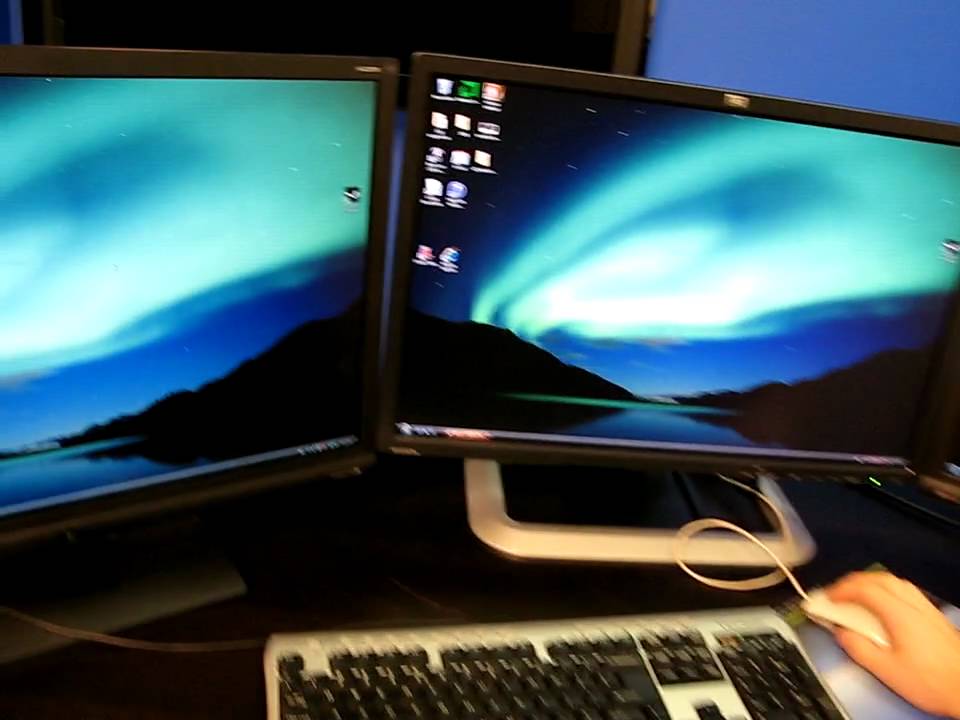
ATI Eyefinity Setup Guide
0 up · 0 down · 0 ratings
Description
Step by step I'll walk you through the process of setting up ATI Eyefinity technology for HUGE resolution gaming.
This ATI Eyefinity Setup Guide walks viewers through creating a single seamless desktop across three monitors using ATI Eyefinity. The presenter demonstrates connecting three displays, noting the requirement for a native DisplayPort monitor for Eyefinity to function properly. The steps include initiating a display group to combine the three screens, then switching to the proper group properties to set a high resolution that treats the trio as one large monitor, for example 5760 by 1200. After configuring the resolution, the video shows rearranging the display order so that the taskbar and start menu align correctly with the physical layout. The demonstration concludes with maximizing a program to verify that it stretches across all three screens, confirming the Eyefinity setup is correctly and smoothly utilized for expansive gaming or productivity. Overall, the guide emphasizes practical, step-by-step actions and real-world results, highlighting how a correctly configured Eyefinity setup delivers an ultrawide, continuous desktop experience rather than three separate monitors.
Topics · technology · hardware · gaming · multimonitor_setup
Questions answered
- What is the minimum requirement to make Eyefinity work with three monitors?
- You must have three monitors with at least one native DisplayPort connection, or use an active DisplayPort adapter for the other displays.