Google Chrome 3.0 / 4.0 Themes [HD]
0 up · 0 down · 0 ratings
Description
***WATCH IN HD*** Here I'll show you how easy Google makes it to install a few limited Chrome 3.0 and 4.0 Themes! Pick up Chrome's latest version today: bit.ly Enjoy - SUBSCRIBE
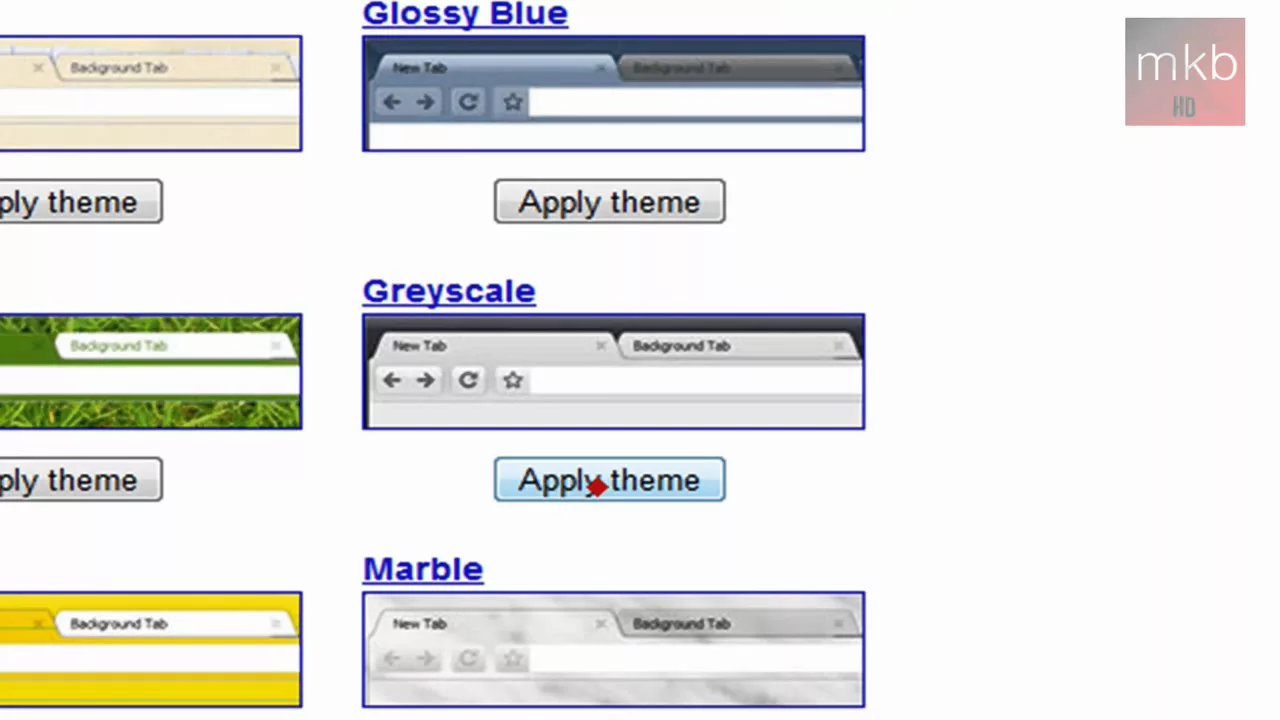
The video provides a concise, practical walkthrough of downloading and applying Google Chrome themes for the 3.0 and 4.0 eras. The presenter begins by noting that Chrome 3.0 has just released a beta and shows how to verify the installed version via the wrench menu, selecting About Google Chrome to confirm the number, such as 3.0. He then navigates to the themes section by going to Options, under Personal Stuff, and clicks Get Themes to open Google's Chrome themes page. The bulk of the content demonstrates selecting a theme, specifically highlighting the Grayscale theme, and applying it with a single button press. Once the Apply Theme button is clicked, the browser downloads and installs the theme automatically, restarting Chrome to complete the process. The presenter emphasizes the simplicity of Chrome’s theme integration, comparing it favorably to traditional theme changes in other browsers. Finally, he shows how to revert to the default or select other themes, underscoring the ease with which users can customize the browser’s appearance. The overall takeaway is that Google makes theme customization quick and accessible, encouraging viewers to try out different themes and to leave comments with further tutorial ideas or requests.
Topics · technology · software · how-to · browsers
Questions answered
- How can I verify the Chrome version before applying themes?
- Open the wrench menu, choose About Google Chrome, and confirm the version number shown there.
- What is the easiest way to apply a Chrome theme and have it take effect?
- From the Options menu, go to Personal Stuff, click Get Themes, select a theme, and press Apply Theme to download and install, with Chrome restarting automatically.
- Can I revert to the default Chrome theme after trying a new one?
- Yes, go back to Get Themes and choose Reset to Default Theme to revert to the original appearance.