How to Free Up Space in Windows
0 up · 0 down · 0 ratings
Promos
Your business deserves a website! Create one for free at odoo.com For some, the fight for storage space on your PC can feel like an endless battle. Which files are safe to delete? Where is all of my storage space going? James has some tips for you to clean up your digital file cabinet! Leave a reply with your requests for future episodes. ► GET MERCH: lttstore.com ► GET EXCLUSIVE CONTENT ON FLOATPLANE: lmg.gg ► SPONSORS, AFFILIATES, AND PARTNERS: lmg.gg FOLLOW US ELSEWHERE --------------------------------------------------- Twitter: twitter.com Facebook: @LinusTech Instagram: @linustech TikTok: @linustech Twitch: twitch.tv
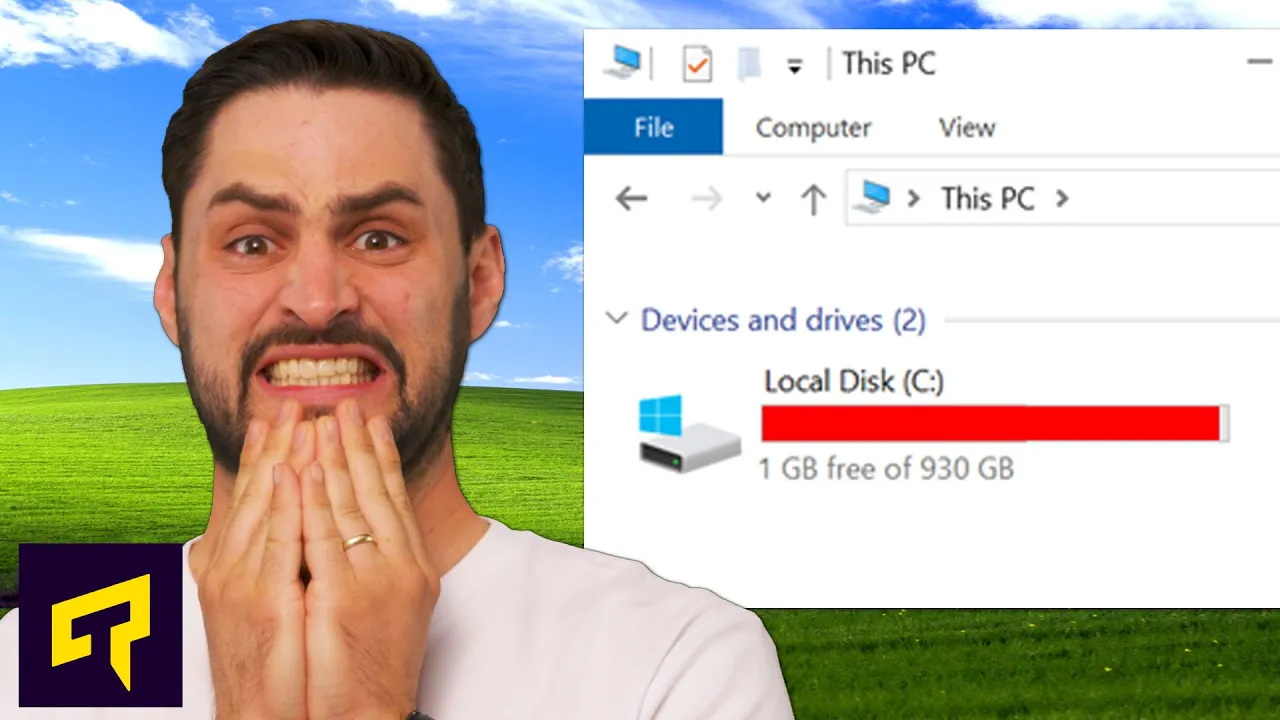
In this Windows focused tutorial, the host walks through built in tools to reclaim disk space on a PC, emphasizing that even in the cloud era local storage remains a critical resource. The first major feature introduced is Storage Sense, accessed through Settings > System > Storage, which can automatically delete unneeded files when space runs low and can be scheduled to run as often as daily. The video then details the Temporary Files section, where users can review categories such as unused temporary files and old system update versions before deciding what to remove, with a careful warning to avoid deleting items that may be useful later. A specific caution is given about potentially deleting previous driver versions, which can free substantial space but may complicate recovery if hardware issues arise, so this step should be taken only if no hardware problems are present. To maximize savings, the host reveals a further method by leveraging a larger more comprehensive cleanup workflow that includes viewing large or unused files, and using Microsoft PC Manager to obtain an even more thorough list of sizable files on the system. Additionally, the video covers debloating the Windows installation by removing unnecessary built in apps and features, either via Start Menu uninstall options or through the Settings > Apps list, highlighting the balance between freeing space and preserving needed functionality. The segment concludes with broader tips such as third party automated tools for bloatware and practical workarounds like changing temporary file locations to other drives and considering lightweight Windows configurations to minimize bundled software. Overall, the guidance aims to help viewers identify which files are safe to remove, how to avoid accidentally deleting something important, and how to combine built in Windows tools with cautious third party approaches to reclaim substantial storage space for better system performance and usability.
Topics · windows operating system · storage management · computer maintenance · how-to · tech-tips · optimization
Questions answered
- What Windows feature automatically frees up space by deleting unneeded files when storage is low?
- Storage Sense, a setting in System > Storage, can automatically delete certain unneeded files and can be scheduled to run at regular intervals.
- Which Windows tools help you identify the largest files and potential space hogs on your PC?
- You can use Storage settings to view large or unused files and Microsoft PC Manager to get a thorough list of the largest files on the system.