The Ultimate iOS 14 Homescreen Setup Guide!
0 up · 0 down · 0 ratings
Promos
So I heard you like homescreens... Complete iOS14 feature walkthrough: youtu.be 0:00 Intro 1:15 Level 1 3:24 Level 2 6:07 Level 3 Timepage: apps.apple.com HeyWeather: apps.apple.com Google: apps.apple.com Color Widgets: apps.apple.com Widgeridoo: apps.apple.com WidgetSmith: apps.apple.com Shortcuts: apps.apple.com My black Icon pack (Paid): icons.tr.af Free icon packs: iconscout.com FlatIcon packs: flaticon.com MKBHD Merch: shop.mkbhd.com Tech I'm using right now: amazon.com Intro Track: Jordyn Edmonds smarturl.it Playlist of MKBHD Intro music: goo.gl ~ twitter.com @MKBHD @MKBHD
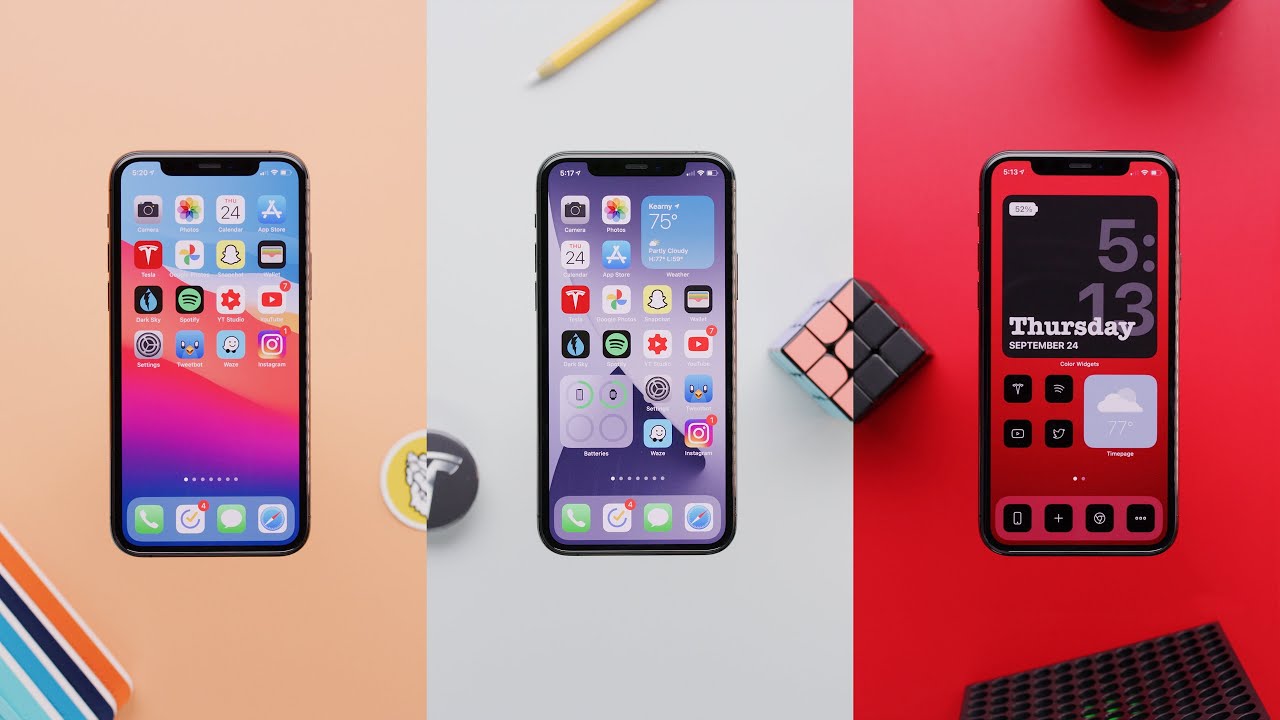
The video presents a structured, beginner-to-advanced blueprint for personalizing the iOS 14 home screen. It starts by acknowledging that many users are exploring home screen customization now that iOS 14 supports widgets and the app library, and then immediately divides the guide into three distinct levels. Level 1 targets newcomers who are sticking to stock widgets and the basic layout, explaining how to add simple glanceable widgets such as Weather or Battery, and how to declutter by using the App Library to hide unnecessary apps. The presenter emphasizes practical, immediate wins like placing a few widgets on the home screen, resizing them, and experimenting with minimalism such as a dock-only home screen. Throughout, there is a focus on making the home screen visually cleaner and more informative at a glance, without delving into heavy customization just yet. The section ends with a note that these changes already mark a meaningful improvement over prior iOS versions and invites viewers to explore more advanced options in later parts of the video. In Level 2, the guide moves into third-party widgets and deeper customization. The video highlights native widgets from Apple alongside more capable third-party options such as Timepage, HayWeather, Google, Color Widgets, Widgeridoo, and WidgetSmith, illustrating how these tools unlock richer glanceable information like calendar data, weather, battery status, and quick search capabilities. The host discusses the trade-offs of paid upgrades and in-app purchases that come with many widget apps, while stressing that Level 2 customization can greatly enhance productivity and personalization. The narration also explains how widget ecosystems allow users to tailor colors, gradients, and sizes to create cohesive themes, and advises viewers to share promising widget discoveries in the comments to build a resource pool for the community. The section concludes by noting that Level 2 is more time-intensive but dramatically increases the functional appeal of the home screen for daily use. Level 3 tackles advanced icon customization using Siri Shortcuts, enabling truly customized icons and a unique aesthetic. The presenter clarifies that true custom icons are not natively supported, so users rely on Shortcuts to open apps while presenting a clean icon surface. A step-by-step walkthrough demonstrates creating a Shortcuts action to open a chosen app, naming the shortcut, and selecting an image to serve as the visible icon. The video discusses the UX caveats of this approach, including the need to run the Shortcuts app each time and the absence of notification badges on those icons, which can limit practicality for a full screen of shortcuts. The host also shows how to keep a clean look by leaving the shortcut name blank and discusses stylistic icon packs as time-saving alternatives. The segment closes with encouragement to explore Level 3 only if the user really wants a highly stylized, Android-like home screen and hints at ongoing widget/icon pack resources to aid the customization journey. The overall message is that iOS 14 opens up substantial customization potential, with three scalable levels that users can pursue at their own pace.
Topics · technology · mobile operating systems · user interface design · productivity
Questions answered
- What are the three levels of iOS 14 home screen customization shown in the video?
- Level 1 is beginner, focusing on adding basic widgets and using the App Library to hide unused apps. Level 2 is enthusiast, introducing third party widgets and more personalized layouts. Level 3 is advanced or former Android users, using Siri Shortcuts to create custom icons and a highly stylized home screen.
- Can you use true custom icons on the iOS 14 home screen without shortcuts?
- No, true custom icons are not natively supported in iOS 14. The video demonstrates using Siri Shortcuts to create icons that open apps, which is a workaround but requires the Shortcuts app to run each time you launch the shortcut.
- What are some recommended widgets for Level 2 customization?
- Recommended Level 2 widgets include Timepage for a minimal calendar view, HayWeather for weather details, Google widget for quick searches and lens, Color Widgets, Widgeridoo, and WidgetSmith for broader glanceable information and customization options.