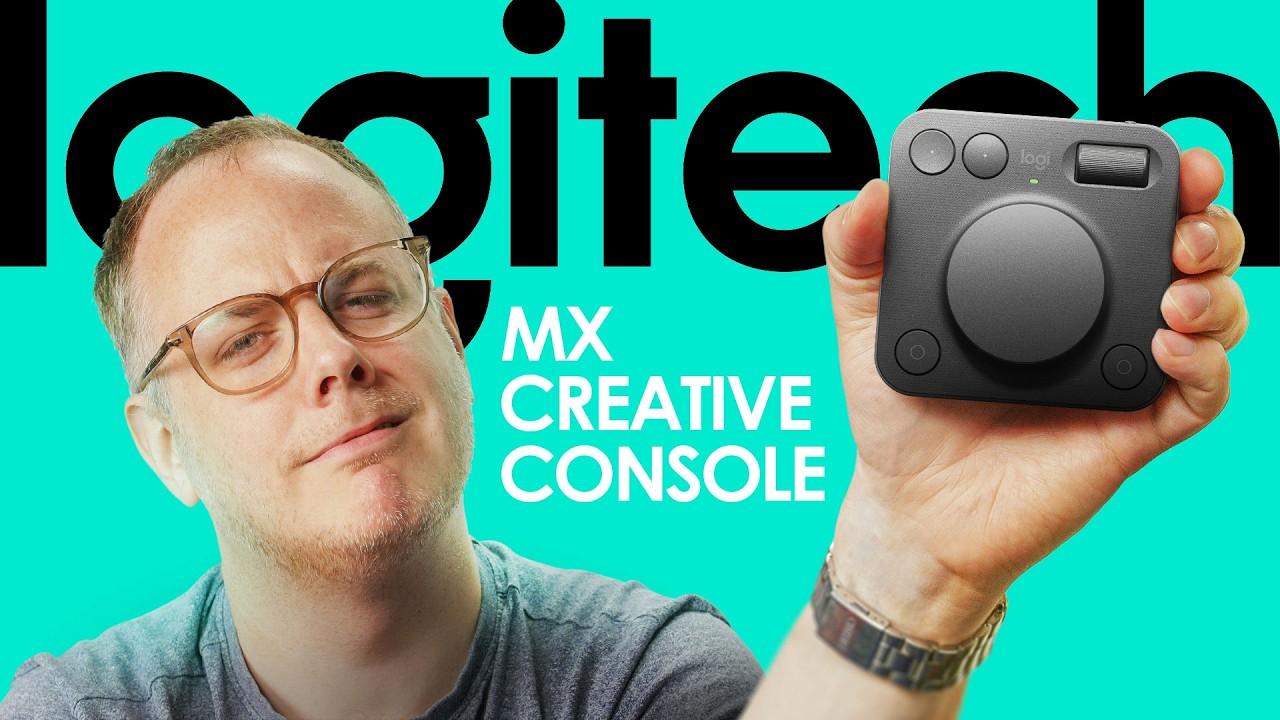
Look at my knob - Logitech MX Creative Console
0 up · 0 down · 0 ratings
Promos
Purchase a Xidax PC at: xidax.com Logitech’s MX Creative Control pairs customizable buttons with dual knobs in a compact, wireless package. It’s aimed at creatives using tools like Premiere or Photoshop, but how well does it actually work in a real editing setup? We compare it to other control surfaces, dig into the software, and see if the hardware lives up to the hype. Buy a Logitech MX Creative Console Programmable Keypad: geni.us Purchases made through some store links may provide some compensation to Linus Media Group. Want us to unbox something? Make a suggestion at lmg.gg ► GET MERCH: lttstore.com ► GET A VPN: piavpn.com ► GET EXCLUSIVE CONTENT ON FLOATPLANE: lmg.gg ► SPONSORS, AFFILIATES, AND PARTNERS: lmg.gg CHAPTERS --------------------------------------------------- 0:00 A knob for creative professionals 0:33 Unboxing and hardware overview 1:28 It's wireless 2:10 Button layout and software support 3:56 Sponsor 4:32 Setting it up with Adobe apps 6:01 Dial features and real-world editing use 7:02 Action ring and color grading tools 9:13 Final thoughts and price 10:06 Credits
The video opens with a playful celebration of knobs as the host introduces the Logitech MX Creative Console, a compact wireless control surface designed for creative professionals. The host unboxes the device, notes its physical design, stand, and friction-based base that keeps it steady during use, and highlights its battery-powered wireless operation with AAAs as a key advantage over wired alternatives. He compares the layout of the buttons, the two dials, and the four additional keys to existing products like the Elgato Stream Deck and other macro pads, while emphasizing that the software integration supports many programs including Adobe Premiere Pro, DaVinci Resolve, and Final Cut. The host also comments on packaging, noting environmentally friendly materials. He then demonstrates initial setup steps, configuring buttons and macros, and explains how the device can be used across multiple apps by importing or customizing profiles. The narrative continues with a practical exploration of how the console integrates into a real editing workflow, including the process of enabling it as a control surface within Premiere and the immediate benefit of having shortcuts available on a dedicated, visual interface rather than relying solely on a keyboard. The overall tone combines enthusiasm for the hardware with a careful look at usability, setup complexity, and potential value for editors who need precise control in a compact form factor.
Topics · technology · hardware · video editing · productivity tools
Questions answered
- What makes the MX Creative Console distinct from a traditional keyboard or a Stream Deck?
- The MX Creative Console combines programmable buttons with two physical dials and an action ring, enabling direct control over software tasks like color grading and editing actions without keyboard hunting. It supports multiple apps via Logitech software and can be configured with macros and pages to fit different workflows, providing a compact, tactile alternative to keyboards and standard macro pads.
- Can the device be used effectively with Adobe Premiere Pro for color grading and editing tasks?
- Yes, the host demonstrates configuring the dials and buttons to access effects, color grading controls, and common editing actions in Premiere Pro. The jog dial and action ring allow precise adjustments, and the device presents a visual interface for shortcuts, reducing the time spent navigating menus.