Google Glass Explorer Edition: Explained!
0 up · 0 down · 0 ratings
Channels and socials
What is Google Glass? What does it look like #throughglass? Google Glass Official Demo: youtu.be Video Gear I use: amzn.com Intro Track: ASDF Movie Song Outro Track: "Channel 41" by Deadmau5 ~ twitter.com google.com @MarquesBrownlee @MKBHD @MKBHD
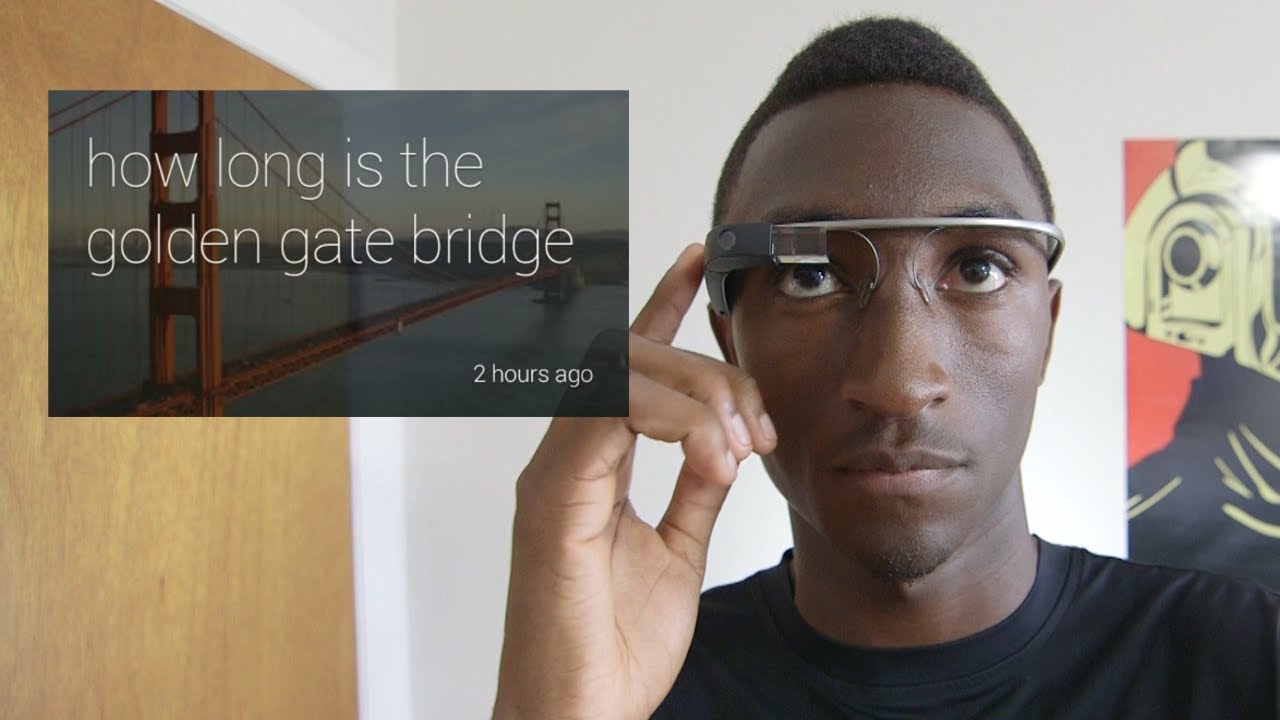
Google Glass Explorer Edition: Explained! walks viewers through the core idea behind Google Glass as a wearable display that sits on the face. The video opens by framing the Explorer Edition as an early, non-final version that will evolve in hardware and software before a consumer release. Marques Brownlee explains the asymmetrical design, noting that most of the smart hardware sits on the right side and that there are no traditional lenses, only a prism that projects a small display into the user's field of vision. He emphasizes that Glass does not have its own cellular radio and must connect via Wi-Fi or tethering to a smartphone, which is essential for Glass to function. The host then describes how the display appears, roughly equivalent to a 25-inch monitor viewed from eight feet away, and highlights that the interface is deliberately minimal, with a square display in the upper right corner to avoid obstructing normal vision. He frames Glass as a new form factor, akin to Android devices, where the software ecosystem and available apps will determine the breadth of capabilities beyond the seven native functions. In the second segment, the video details the seven core capabilities available out of the box on Glass, all controlled through the side touchpad with swipes and taps. Brownlee demonstrates taking photos and videos, including hands-free recording by holding the shutter button to start a 10-second video and extending recording time as needed. He discusses video and photo quality, noting the wide-angle lens and burst-shot capability that deliver a first-person perspective close to real life, which is one of Glass’s defining strengths. Navigation is highlighted as a standout built-in feature with real-time arrows that guide users through walking, biking, or driving, making unfamiliar places easier to traverse without pulling out a phone. The on-device communication features, such as sending messages or placing calls via the My Glass app, are shown as hands-free options that require a paired phone for contact access and connectivity. The final stretch covers Google Search and Google Now integration, where voice queries are answered aloud, and contextual information appears through a swipeable glass interface. Brownlee explains that Glass offers weather, translations, and predictive information just like Google Now on mobile, tailored to the wearer’s current location and needs. He reminds viewers that this is an Explorer Edition with a limited feature set and clarifies that a mass-market consumer version would bring updated hardware, software, and pricing. The video concludes with reflections on the potential price and encourages viewer input on what they would pay, while teasing more Glass coverage in future content. Overall, the video presents Glass as a bold early step in wearable computing, with strong emphasis on hands-free interaction, first-person media capture, and a growing app ecosystem that would expand the device’s practical uses once a fuller release arrives.
Topics · technology · wearables · mobile_computing · consumer_electronics · augmented_reality · camera_tech · navigation · apps_and_platforms
Questions answered
- What is the Explorer Edition of Google Glass and how does it differ from the final consumer version?
- The Explorer Edition is an early, limited version used for testing and feedback; it will be updated in hardware and software before a mass-market consumer release.
- How does Google Glass connect to the internet and stay functional without its own cellular radio?
- Glass connects via Wi-Fi or Bluetooth tethering to a smartphone and uses the My Glass app to access internet data.
- What are the seven core functions that Glass can perform out of the box in this build?
- Taking photos, recording videos, navigation with Google Maps, sending messages, making calls, performing Google search, and using Google Now.