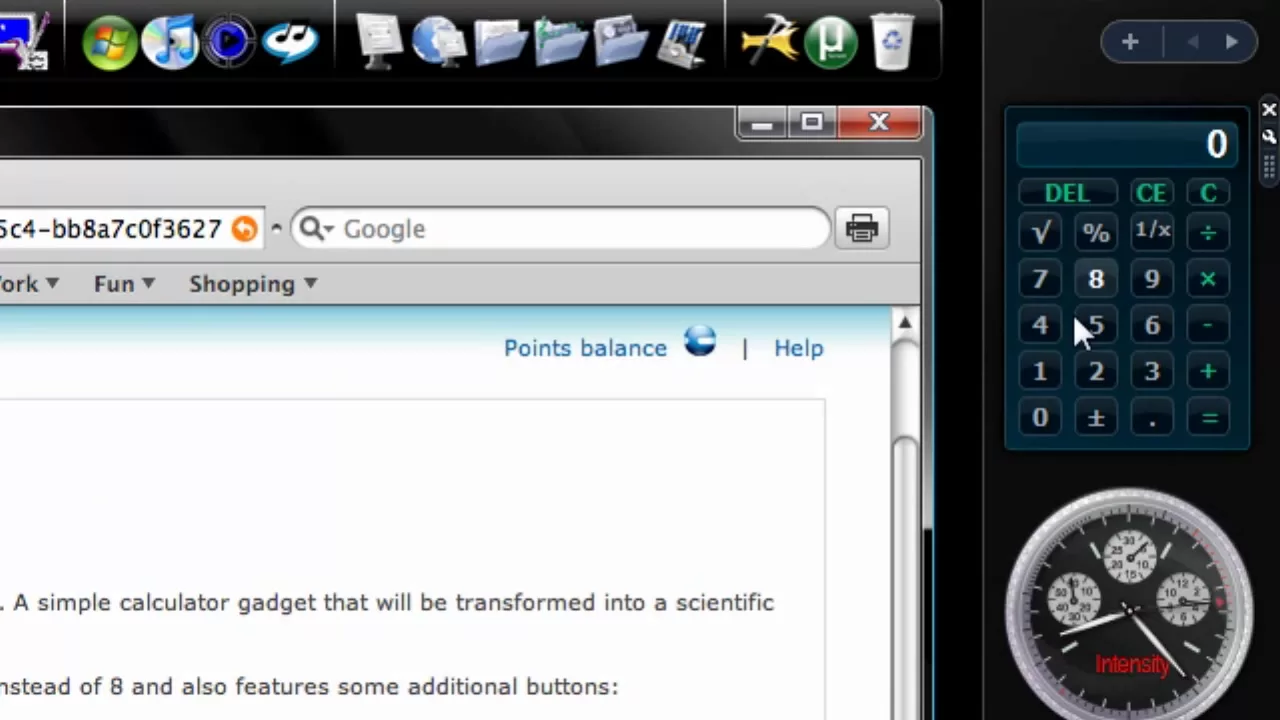
HD Tutorial: Sidebar Gadgets
0 up · 0 down · 0 ratings
Description
***WATCH IN HD*** You've seen those cool gadgets in people's sidebars of people who use Windows Vista - well how to you get them there? Here's your HD tutorial on how to add and remove gadgets from the sidebar in Windows Vista. (Same instructions apply to the Google Sidebar in Windows XP!) Enjoy - SUBSCRIBE
This HD tutorial demonstrates how to manage Windows Vista desktop gadgets in the sidebar, including adding, moving, and removing gadgets. The presenter begins by pointing to the small plus button at the top of the sidebar, which opens a selection of built-in gadgets such as stocks and feed headlines. Gadgets can be added to the sidebar by dragging them from the available list into any position on the sidebar, with immediate visual feedback as they snap into place. To obtain more gadgets, the tutorial walks through clicking the get more gadgets online option, which launches the default web browser and navigates to the Windows gadget gallery. The process for installing a new gadget is shown step by step: select a gadget, download, confirm installation, and see the gadget appear in the sidebar. The video also covers navigating multiple gadget pages, demonstrated by how a second page can hold items like an XM radio gadget, and explains how to rearrange or remove gadgets by dragging, shrinking, or using the uninstall option accessed via a right click. Finally, the instructor explains gadget settings via the wrench icon, with examples like switching a weather gadget from Fahrenheit to Celsius and entering a location, followed by exiting the gadget and confirming its removal when desired. The tutorial concludes with encouragement to try additional gadgets if the viewer has sufficient hardware resources, and invites viewers to subscribe and request more tutorials if helpful. Overall, the video provides a concrete, hands-on walkthrough of installing, customizing, and removing Windows Vista gadgets to personalize the desktop experience.
Topics · technology · operating_systems · software_tutorial · desktop_customization · windows
Questions answered
- How do you add a new gadget to the Windows Vista sidebar in this tutorial?
- Click the plus button at the top of the sidebar, browse the available gadgets, click a gadget to open its page, then click download and install. After installation, drag the gadget into the desired position on the sidebar.
- How can you remove a gadget from the Vista sidebar as shown in the video?
- Drag or place the gadget where you want it, then right-click the gadget and select uninstall to remove it completely from the computer.