MSI GX660R Core i7 Notebook One Touch Overclocking & Fan Control Linus Tech Tips
0 up · 0 down · 0 ratings
Description
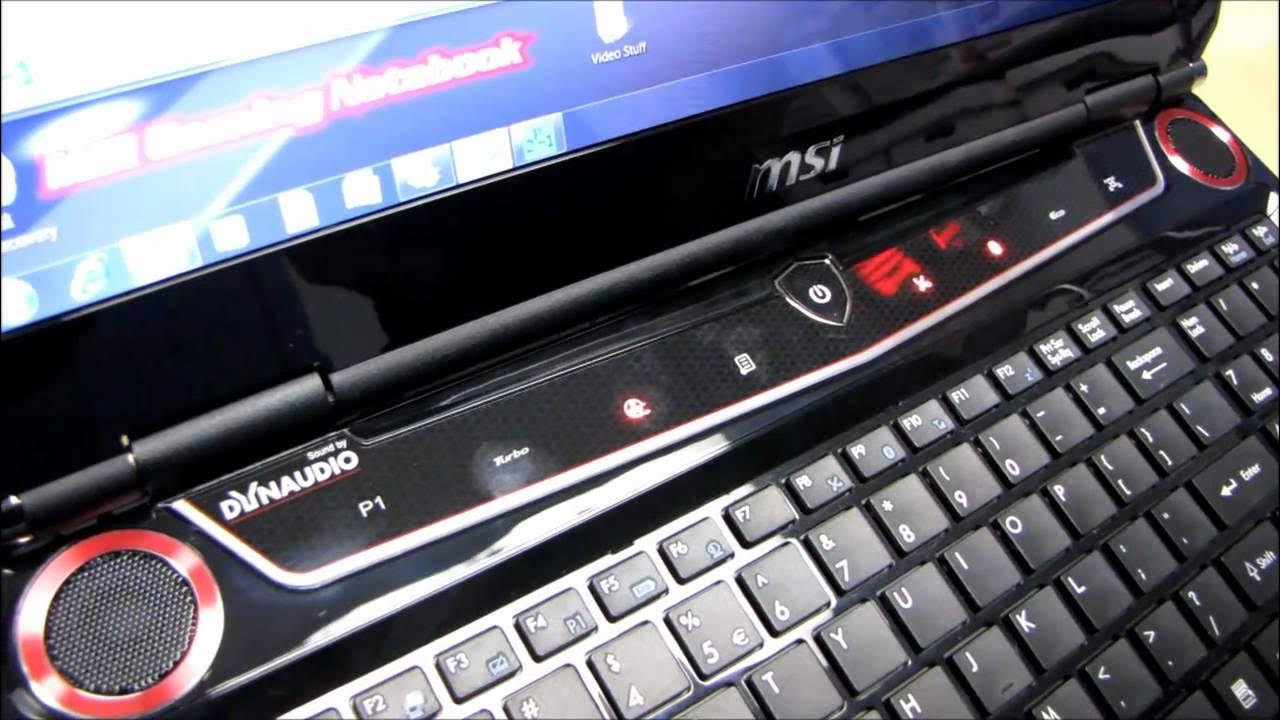
I show you guys how to alter Eco Mode, how to use the one touch overclocking feature, and how to alter the fan profile on the MSI GX660R notebook.
The video demonstrates the OneTouch overclocking and fan control features on the MSI GX660R notebook. Linus first introduces the touch sensitive hardware controls along the top edge, highlighting the eco mode and a series of quick action buttons for wireless, Bluetooth, and various preset power profiles such as eco, movie, gaming, presentation, office, turbo battery, and off. He then focuses on the core overclocking capability by showing the core speed baseline around 931 MHz and how pressing the turbo button temporarily increases the clock. He explains that this OneTouch overclocking is by manipulating the bus speed rather than the CPU multiplier or Intel speed step, meaning turbo boosts are independent from traditional turbo or speedstep behavior. The video includes a practical test using Prime95 to stress the CPU and demonstrates how the clock speed changes with and without turbo, including single-threaded and multi-core stress scenarios. Linus also showcases the “OMG the laptop is noisy” turbo cooling feature that aims to keep temperatures in check when the system is under heavy load, suggesting it as a portable cooling alternative when a laptop cooling pad is unavailable. Throughout, RealTemp or similar temperature monitoring is used to confirm that even under heavy load the notebook remains under a reasonable temperature threshold, emphasizing that the GX660R can overclock while maintaining safe thermal limits. The segment concludes with a recap of the features shown, a practical assessment of what the overclocking and fan controls accomplish, and a call to subscribe for more Linus Tech Tips content.
Topics · technology · hardware · laptops · overclocking
Questions answered
- What does the OneTouch overclocking button affect on the MSI GX660R?
- It overclocks the bus speed rather than the CPU multiplier or Intel speed step, so turbo boost behavior is separate from the standard speed controls.
- What is the purpose of the turbo cooling mode shown in the video?
- Turbo cooling mode temporarily increases fan activity to keep temperatures lower during intensive tasks, acting as a portable cooling boost when a laptop can’t be paired with a cooling pad.