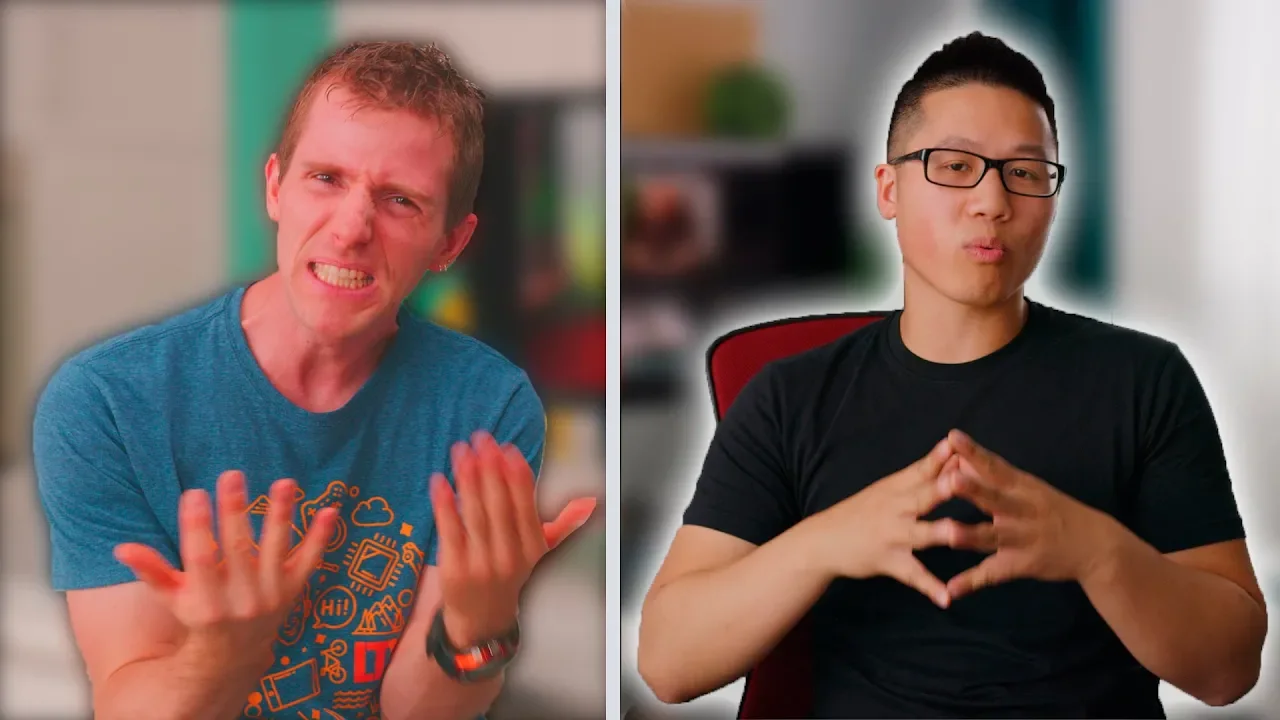
3 Tips for Better Color in Your Videos
0 up · 0 down · 0 ratings
Promos
Thanks BenQ for sponsoring this video! Buy their SW271 monitor on Amazon: geni.us Amazon Promo Code for SW240: 10SW240AMZ (Limited to first 50 people) Receive a $25 eGiftcard by leaving a review on the SW240 by registering here: info.benq.us BenQ PhotoVue SW Photographer Monitors: benq.com BenQ 27-inch 4K HDR Photographer Monitor: benq.com BenQ 32-inch 4K HDR Photographer Monitor: benq.com BenQ 27-inch QHD Photographer Monitor: benq.com BenQ 24.1-inch Photographer Monitor: benq.com Whether you’re shooting with a RED Weapon or a basic DSLR, Color correction is an important step to get professional grade video and photography. Here’s a quick tutorial on how WE could do better.. Buy Benq Monitors: On Amazon: geni.us Amazon Promo Code for SW240: 10SW240AMZ (Limited to first 50 people) B&H Photo: geni.us On Newegg: geni.us Discuss on the forum: linustechtips.com Our Affiliates, Referral Programs, and Sponsors: linustechtips.com Linus Tech Tips merchandise at designbyhumans.com Linus Tech Tips posters at crowdmade.com Our Test Benches on Amazon: amazon.com Our production gear: geni.us Twitter - twitter.com Facebook - @LinusTech Instagram - @linustech Twitch - twitch.tv Intro Screen Music Credit: Title: Laszlo - Supernova Video Link: youtube.com iTunes Download Link: itunes.apple.com Artist Link: soundcloud.com Outro Screen Music Credit: Approaching Nirvana - Sugar High youtube.com Sound effects provided by freesfx.co.uk
The video opens with a quick introduction to BenQ’s SW‑271 monitor, highlighting its 4K HDR capability and 99 % Adobe RGB coverage. Brandon Lee walks through three main color‑correction steps: balancing foreground to background exposure, ensuring color consistency across scenes, and applying a final color‑grading pass. He demonstrates how to adjust the background highlights to match Linus’s skin tones, then corrects white‑balance differences between Linus’s office and Nick’s office, and finally tweaks green and yellow tones to give the footage a more vibrant, cohesive look. In the second half, Brandon dives into the monitor’s hardware features,shading hood, spectrophotometer, and 14‑bit 3‑D LUT,showing how these tools improve calibration and reduce delta‑E values. He also covers the monitor’s connectivity options (HDMI 2.0, DisplayPort 1.4, USB‑C) and the included face‑puck controller, which lets users switch between color spaces and adjust settings on the fly. The video ends with a recap of the three tips and a call to action for viewers to try the SW‑271 themselves.
Viewers praise Brandon’s clear explanations and the practical focus on color correction. Comments highlight the desire for more screen time for Brandon and praise the depth of the tutorial. The high like count (924) and multiple replies suggest strong engagement, with commenters noting the video’s usefulness for both beginners and seasoned editors.
Topics · science & technology · review · tips · pc · tech · linus · computer · color
Questions answered
- What is the primary benefit of BenQ SW‑271 for color correction?
- It offers a 14‑bit 3‑D LUT and hardware calibration that reduces delta‑E values under one perceptible level.
- How does Brandon suggest balancing foreground to background exposure?
- By lowering background highlights to match Linus’s skin tones, creating a smoother exposure transition.
- What white balance issue did Brandon identify?
- Warm daylight from Linus’s office versus warmer overhead lights in Nick’s office caused color shift, which he corrects in post.
- What are the key features of the monitor’s connectivity?
- HDMI 2.0, DisplayPort 1.4, and USB‑C provide data, power, and 10 W output for the integrated SD reader.