HD Tutorial: Get a Character Map
0 up · 0 down · 0 ratings
Description
***WATCH IN HD*** This tutorial will show you the easiest way to keep track of all your accented and unusual characters without changing your language or dictionary in Microsoft Word. It's called a character map! You won't even need to change the language of Word, or any system or program preferences. Enjoy - SUBSCRIBE
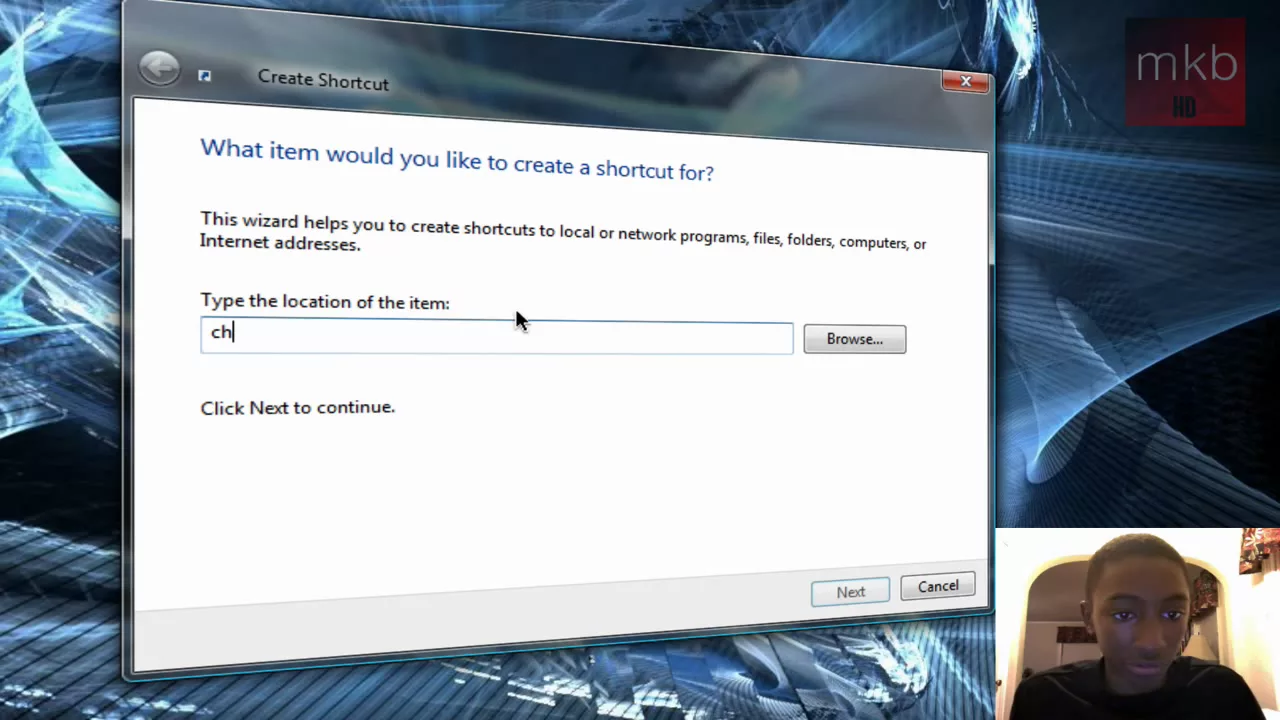
This HD tutorial demonstrates a quick method to access a complete set of accented and unusual characters in Microsoft Word without changing the Word language or overall system settings. The presenter explains the problem of needing frequent accented characters while writing in languages such as Spanish, and offers a simple workaround using the built-in Character Map utility. A desktop shortcut is created named map that directly opens the Character Map, allowing users to scroll through hundreds of characters and select the one they need. The video then shows how to copy a chosen character from the map and paste it into a Word document, enabling seamless inclusion of special symbols without lengthy setup. By the end, viewers learn a fast, repeatable workflow for inserting diverse characters while maintaining their current Word configuration. The tutorial emphasizes practicality and ease of use, inviting viewers to subscribe for more quick tips.
Topics · tutorial · productivity · software
Questions answered
- What is a character map and why would you use it in Word?
- A character map is a built-in utility that lists hundreds of accented and unusual characters. It allows you to copy and paste characters into Word without changing the language settings or dictionary.
- How do you create a desktop shortcut to open the Character Map?
- Right-click the desktop, choose New then Shortcut, type char map, click Next, give it a name like Map, and finish. Double-clicking this shortcut opens the Character Map.
- How do you insert a character from the Character Map into a Word document?
- Open the Character Map via the shortcut, scroll or search for the desired character, select it, copy it, then paste it into your Word document.