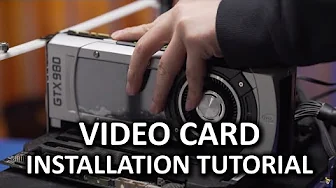
Installing a Video Card - How To: Basics
0 up · 0 down · 0 ratings
Description
Installing a graphics card is simple for many of you out there, but we were all newbies once, and both current and future newbies need solid information!
Channels and socials
Check out Rackspace's Deep Dive Sessions here! bit.ly Their next session is on March 30th @ 1pm CST Title: Deep Dive: How to optimize SQL Server for Performance and Reliability EVGA link: linustechtips.com Pricing & discussion: linustechtips.com PSU Rankings thread: linustechtips.com Support us: linustechtips.com Join our community forum: bit.ly twitter.com @LinusTech Intro Screen Music Credit: Title: Laszlo - Supernova Video Link: youtube.com iTunes Download Link: itunes.apple.com Artist Link: soundcloud.com Outro Screen Music Credit: Approaching Nirvana - Sugar High youtube.com Sound effects provided by freesfx.co.uk
The video provides a practical, beginner-friendly walkthrough for installing a graphics card in a desktop PC. It begins by emphasizing compatibility considerations, advising viewers to verify case space, the correct PCI Express slot, and a power supply with the necessary watts and six-pin (or six-plus-two) PCIe connectors. The host explains the importance of static precautions, recommending either an anti-static wristband or regularly touching a metal case part to discharge static electricity. He then guides viewers through choosing the correct slot on the motherboard, typically the topmost PCIe x16 slot closest to the CPU, while noting that using an 8x slot is acceptable in many boards. The step-by-step hardware procedure follows: remove the expansion slot covers as needed, align the card with the slot, press firmly until it clicks into place, and secure the card with screws while slightly lifting it to prevent drooping. After the card is seated, the video covers connecting PCIe power cables, routing cables through the case’s management holes, and ensuring the cables are clipped securely, all while keeping the build tidy for airflow. With the hardware installed, the host shifts to software, stressing the need to reinstall or update drivers carefully. He recommends running a clean slate with Display Driver Uninstaller (DDU) in safe mode to remove old drivers, then visiting NVIDIA or AMD websites to download the latest drivers and performing a custom installation to avoid unwanted bundled software. The video concludes by noting that once drivers are installed, gamers can launch their titles, adjust settings, and enjoy the improved graphics performance, while also highlighting additional resources and viewer community links in the description.
Topics · hardware · computer-assembly · how-to-guide · pc-building · technology
Questions answered
- What should you verify before installing a graphics card?
- Check that the case can accommodate the card, confirm the motherboard supports a PCIe x16 slot, and ensure the power supply has the correct PCIe power connectors and enough wattage.
- How should you prepare the system for driver installation after mounting the card?
- Use Display Driver Uninstaller (DDU) to remove old drivers in safe mode, then install the latest drivers from the GPU vendor's site with a custom installation to avoid extra software.