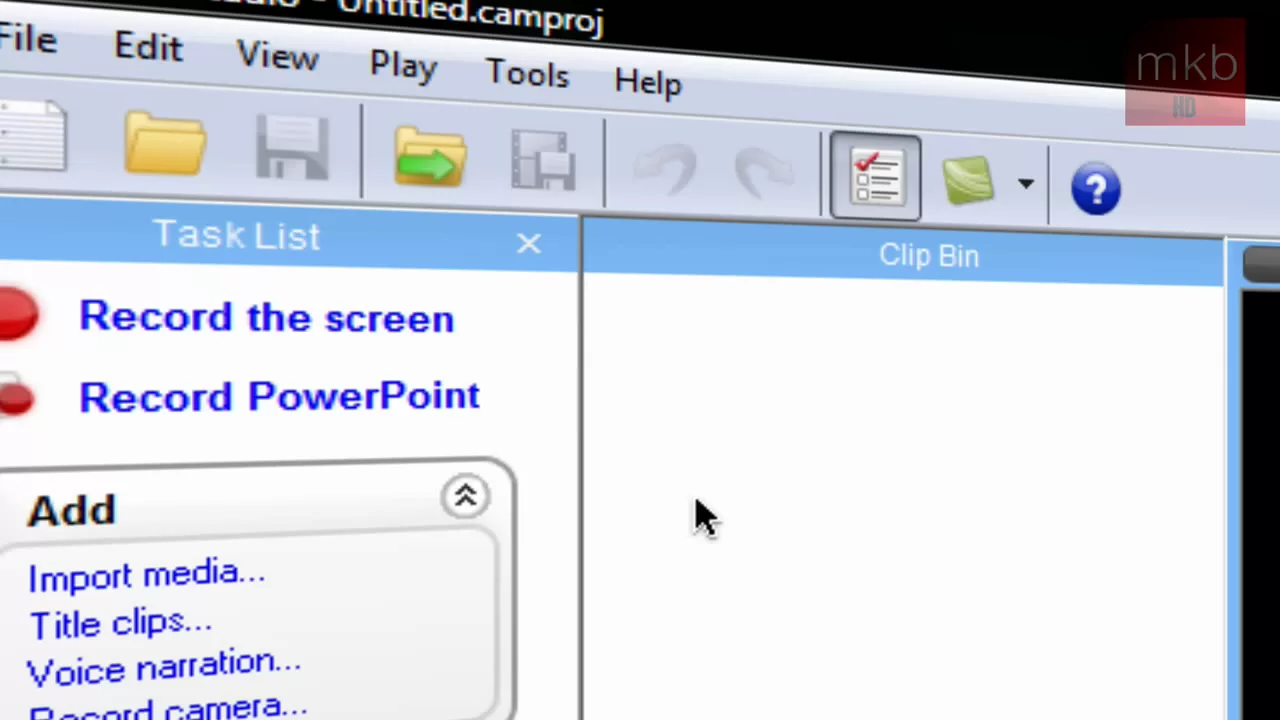
HD Tutorial: Remove Camtasia's Green Zoom Rectangle (Request)
0 up · 0 down · 0 ratings
Channels and socials
***WATCH IN HD*** This is just a quick tutorial for you guys who've wanted to know how I got rid of the green zoom rectangle for my presentations in Camtasia Studio 6. Subscriber that requested this tutorial: youtube.com Enjoy - SUBSCRIBE
The video provides a concise, practical guide for removing the green zoom rectangle that appears in Camtasia Studio 6 during editing. The presenter begins by opening Camtasia Studio 6 and explaining that the process is simple and quick. He directs viewers to the Tools button, then to Options, and finally to the Zoom tab. The key step is to uncheck the apply zoom and pan hints option, which disables the green zoom square in the preview whenever zooming in or out. After selecting OK, the change takes effect immediately, and the green rectangle no longer shows during playback or editing. The tutorial emphasizes that this change only affects the editor's zoom hints and does not alter the video content itself. The overall takeaway is that viewers can easily customize their editing interface to avoid the distraction of the green rectangle, improving workflow during Camtasia Studio 6 projects.
Topics · technology · howto · software · video_editing
Questions answered
- How do I remove Camtasia Studio 6's green zoom rectangle from the editing preview?
- Open Camtasia Studio 6, go to Tools, then Options, select the Zoom tab, and uncheck Apply zoom and pan hints; click OK to apply the change.
- Will turning off the zoom hints affect the video quality or playback in Camtasia Studio 6?
- No, this change only affects the display of zoom hints in the editor; it does not modify the actual video content or its quality.