HD Tutorial: Virtual Memory
0 up · 0 down · 0 ratings
Description
***WATCH IN HD*** This is a very brief (yet popular) tutorial on how to increase performance in Windows using Virtual memory - a paging file Windows uses just like is uses RAM. This can be useful if you've got a quick hard drive RPM speed - but not a lot of actual RAM! Enjoy your faster computer - SUBSCRIBE
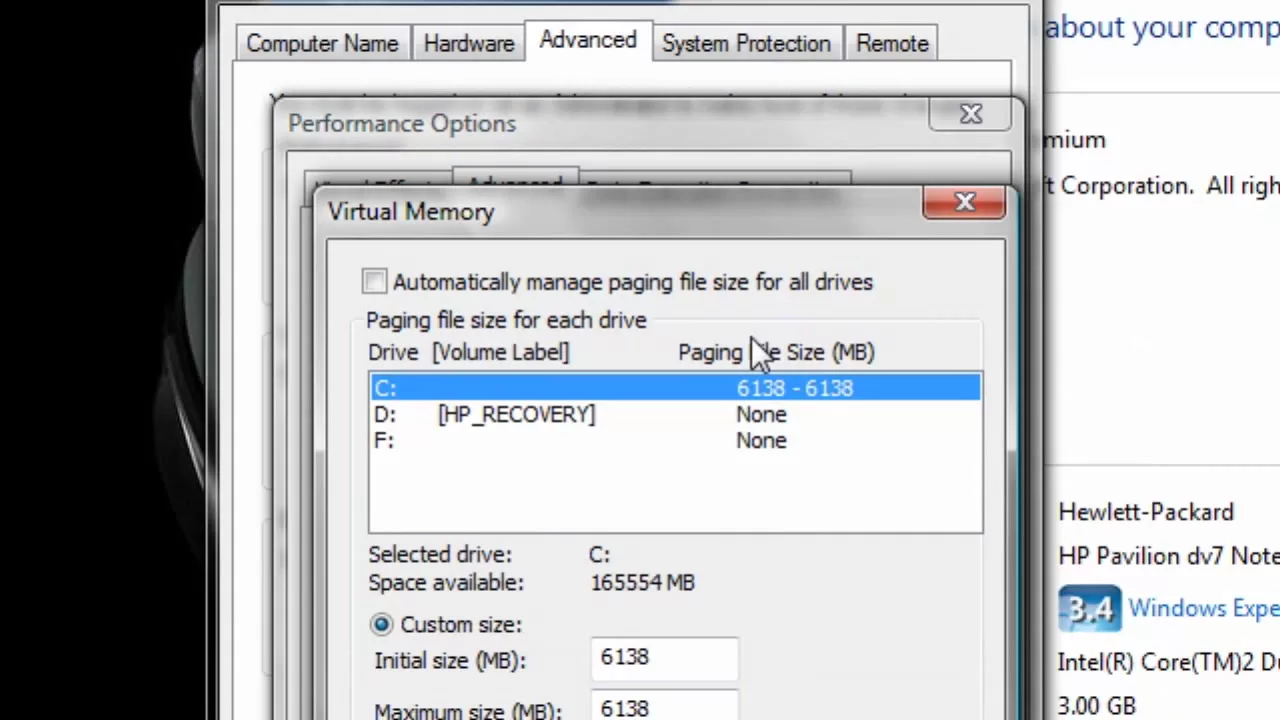
This short HD tutorial demonstrates a quick method to boost Windows performance by configuring virtual memory, specifically the paging file, to act as an extension of RAM. The presenter walks through a step by step process starting from opening the Start menu and accessing System Properties, then navigating to Advanced System Settings and the Performance options. The key concept explained is that the paging file on the hard disk serves as additional memory when RAM is insufficient, which can help speed up systems with slower or limited RAM, such as older drives operating with Windows Vista. A practical guideline is given: set virtual memory to about one and a half times the physical RAM you have, which in the example equates to 6 GB of virtual memory for 4 GB of RAM. The tutorial then shows how to switch to custom size, input the values in megabytes, apply the changes, and confirm that the new virtual memory size is active. The video concludes with a brief reminder that this is a quick way to improve performance and invites viewers to subscribe for more content.
Topics · science & technology · computer hardware
Questions answered
- What is the purpose of virtual memory in Windows operating systems?
- Virtual memory uses a paging file on the hard disk to extend available memory when physical RAM is insufficient, helping to improve system performance.
- How should you choose the size of the paging file relative to RAM?
- A common guideline is to set virtual memory to about one and a half times the amount of physical RAM, for example 6 GB of virtual memory for 4 GB of RAM.
- What are the basic steps to adjust virtual memory in Windows Vista or XP?
- Open Start, right click Computer, select Properties, go to Advanced system settings, choose Performance settings, select the Virtual Memory option, click Change, set a custom size, apply changes, and restart if required.