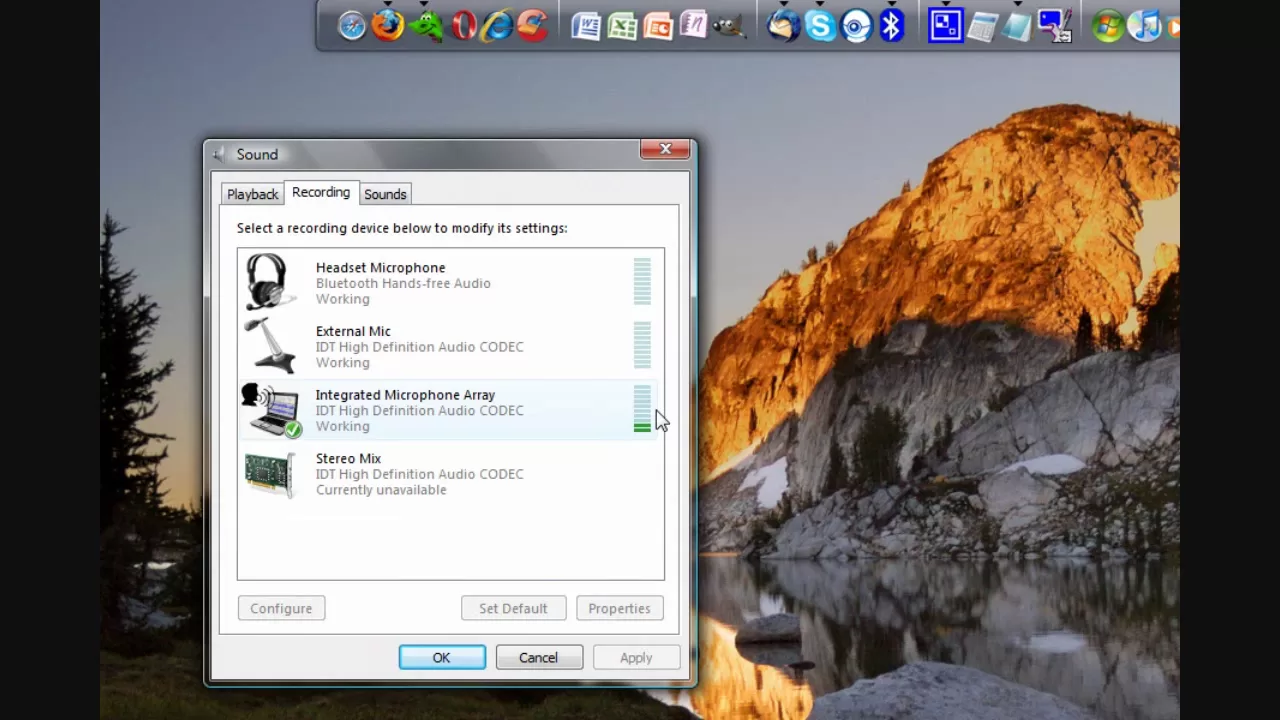
HD Tutorial: Boost your built-in microphone
0 up · 0 down · 0 ratings
Description
***WATCH IN HD*** This brief tutorial will help you get better sound quality out of your built in mic - free!
HD Tutorial: Boost your built-in microphone presents a concise, practical guide for improving the sound quality of built-in laptop microphones without purchasing external gear or software. The video walks through a straightforward in-system adjustment: open the Sound settings, select Recording Devices, double-click the microphone, and navigate to Levels. The presenter demonstrates enabling a Microphone Boost of 10 decibels, then applying and saving the change. The method is described as built into Windows, with a note that Vista supports this feature and XP will be addressed in a future look, implying wide compatibility within the era’s Windows releases. The result shown is a louder, clearer mic input that responds to proximity to the device, illustrating the boost with concrete on-screen movement and level changes. The tutorial emphasizes simplicity and accessibility, highlighting that no extra software or hardware is required to achieve better recording quality. Viewers are encouraged to subscribe for more tutorials, signaling ongoing value and future content in a similar vein. The overall takeaway is that substantial improvements to built-in mic performance are achievable quickly using built-in Windows controls.
Topics · technology · audio · laptops
Questions answered
- How can I boost the built-in microphone without buying new hardware or software?
- Open Windows sound settings, go to Recording Devices, select the microphone, choose Levels, enable Microphone Boost (for example +10 dB), apply, and confirm. This uses only built-in OS features to improve recording volume.
- Will this technique work on Windows XP as described in the video?
- The video notes that the boost feature is built into Windows Vista and mentions a future look at Windows XP, implying the exact steps may vary or not be available on XP.