Gigabyte MIB T3140 Monitor Integrated Box LCD Installation Video Linus Tech Tips
0 up · 0 down · 0 ratings
Description
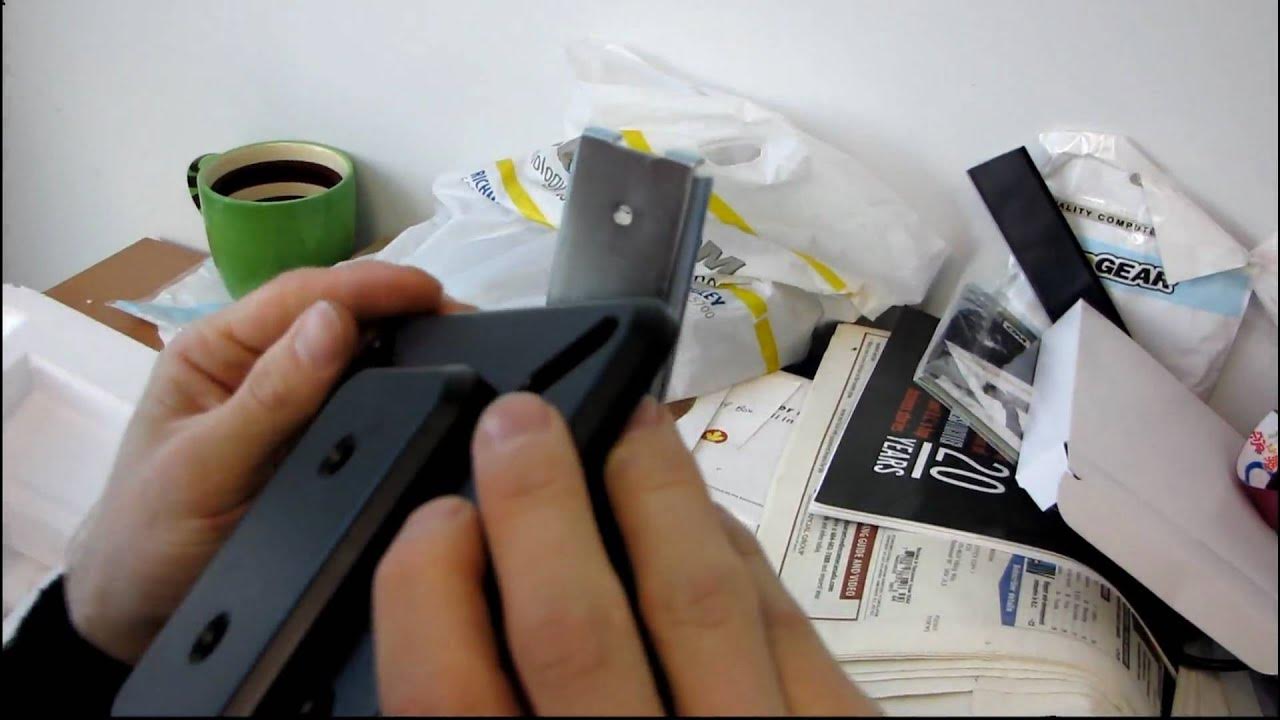
After I did my unboxing and product overview I thought I'd take a quick look at just how long it takes to install a monitor on this "MIB" system.
The video documents a practical hardware install on the Gigabyte MIB T3140 integrated box, focusing on attaching a 19-inch Acer monitor to the system. The presenter begins by acknowledging the unboxing and highlights the included hardware for the MIB case, including drive screws and motherboard mounting hardware. He shows the orientation of the monitor mount, demonstrates how to unlock and extend the mounting arm, and notes some initial difficulty with the mechanism before it loosens up. After verifying the correct orientation, he selects the appropriate screws and begins fastening the monitor to the back of the case, starting with two screws and then adding a couple more for stability. He emphasizes the importance of proper alignment to ensure the screws thread cleanly and the monitor remains secure, and he concludes that the installation takes a handful of screws and results in a rigid, movable setup suitable for a keyboard and mouse input area. In the final portion, he demonstrates the completed configuration, describing the ease of movement with the installed monitor and noting that the setup supports basic PC interaction, with vertical and tilt adjustments showcased as part of the overall installation efficiency.
Topics · hardware · instructional · tech reviews · computer_chassis